On this page
Share a Military Map Online: Links, Roles and Versions
Tutorial 8 of 17 · Intermediate · 20 min
Put your situation map online as a MilX Share, give viewers and editors each their own link, save new versions, follow what others change and go back to an earlier state.
You need
map.army open in a current desktop browser, with at least one MilX® layer on the map. No account is needed. Plan about 20 minutes. Share a map shows the basics in a video; this tutorial goes through every part of a share.
A MilX Share stores your MilX layers and map settings on the map.army server under a number, the Share ID. Everyone with a link works on the same common operational picture (COP), the shared situation map.
Step 1: Create the share
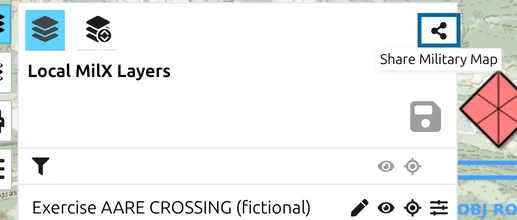
- Click Layers in the toolbar, then the share icon, Share Military Map.
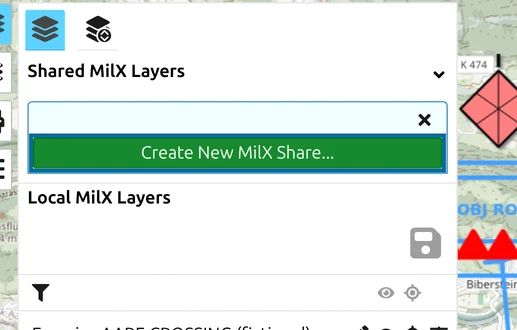
- Click Create New MilX Share….
The app moves your MilX layers into the share and saves it at once; the message New MilX Share created. confirms it. The layers now appear under Shared MilX Layers instead of Local MilX Layers. Image and vector layers loaded from a file on your computer are not part of the share.
Step 2: Send each person the right link
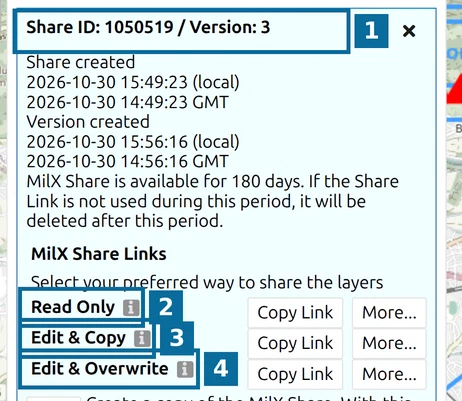
The details of the share open by themselves after you create it.
- 1 — Share ID and Version, with the dates the share and the version were created.
- 2 — Read Only: the receiver sees the map but cannot save.
- 3 — Edit & Copy: the receiver can change the map and save the result as a copy, a new share of their own; your share stays as it is.
- 4 — Edit & Overwrite: the receiver can save new versions into your share.
The access depends only on which link you send, so send Read Only to viewers and Edit & Overwrite only to the people who work on the plan with you. Copy Link puts a link on the clipboard.
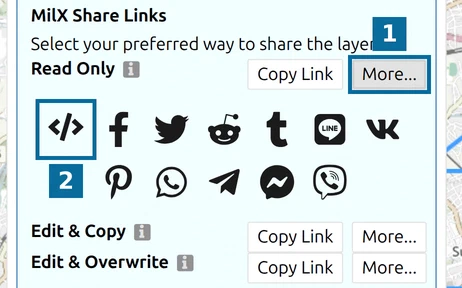
- 1 — More… opens further ways to pass the link on.
- 2 — Copy embed code (iframe): code to show the map in a web page, see Embed a military map in a web page.
Tick Include Version in Link below the rows to send a link to exactly the current version. The box is not remembered.
Step 3: Save a new version
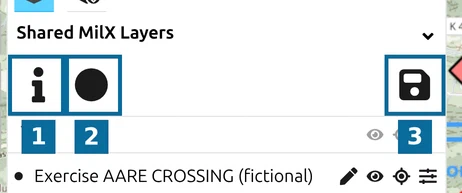
The share has its own toolbar above the layers:
- 1 — show or hide the share details.
- 2 — change tracking, see step 4.
- 3 — save. The icon is dimmed until you change something.
After a change, click the save icon or press Ctrl+S. Saving needs an Edit & Overwrite link.
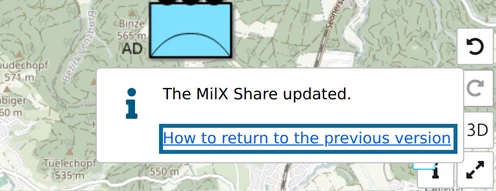
The message The MilX Share updated. confirms the save. Each save adds a new version on top of the newest one. Nothing is overwritten, despite the link’s name, so every earlier state stays available. The app does not check for conflicts or merge: if two editors work at the same time, the later save becomes the newest version without the other’s changes. Those changes are not lost; they stay in the earlier version.
Step 4: Follow the changes of others
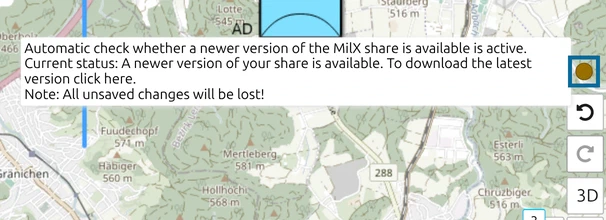
Click the change-tracking button (the circle, 2 in step 3). It turns blue, and a round indicator appears at the bottom right of the map. The app now checks about every three minutes whether someone has saved a newer version, and the setting is remembered.
When a newer version exists, the indicator turns amber. Click it to load the newest version. Unsaved changes of your own are lost, so save them first.
Step 5: Go back to an earlier version
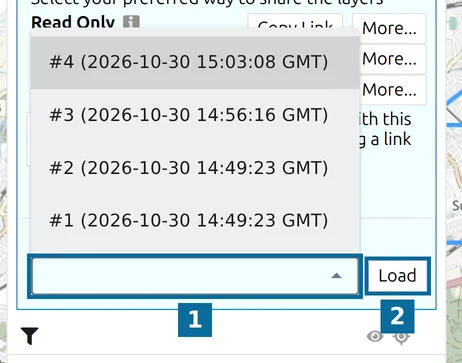
In the share details, under Load specific version:
- 1 — pick a version; each is listed with its number and time in GMT.
- 2 — Load.
The list appears once the share has more than one version. A new share already starts at version 2: version 1 is the empty share, version 2 holds your layers.
If you save while an earlier version is open, it becomes the newest version. To keep an earlier state as it is, click the copy icon in the share details, Create a copy of the MilX Share…. It creates a new share with its own Share ID and links, and switches to it.
Step 6: Open the share again
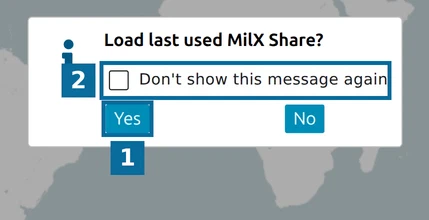
When you open map.army again, it asks Load last used MilX Share?.
- 1 — Yes opens the share with the strongest link you used, so an editor reopens it as an editor.
- 2 — Don’t show this message again stops the question.
Anyone else opens the share with the link you sent. A Read Only link shows only its own link row and no working save button.
Next tutorial
Continue with Add your own maps. All share settings are described in Share a Tactical Map or COP Online with a Link, and layers kept online in Share online-source layers.
Last updated: