On this page
Update a Situation Map: D-Day Evening, 6 June 1944
Tutorial 7 of 17 · Intermediate · 20 min
Bring the D-Day map up to the evening of 6 June 1944: mark a German division’s losses, give the 21st Panzer Division a more exact symbol, show its counter-attack towards the coast and plan the attack on Caen.
You need
map.army open in a current desktop browser and about 20 minutes. You should know how to select a symbol and open the symbol editor; Map the D-Day landings shows how, and this tutorial continues its map.
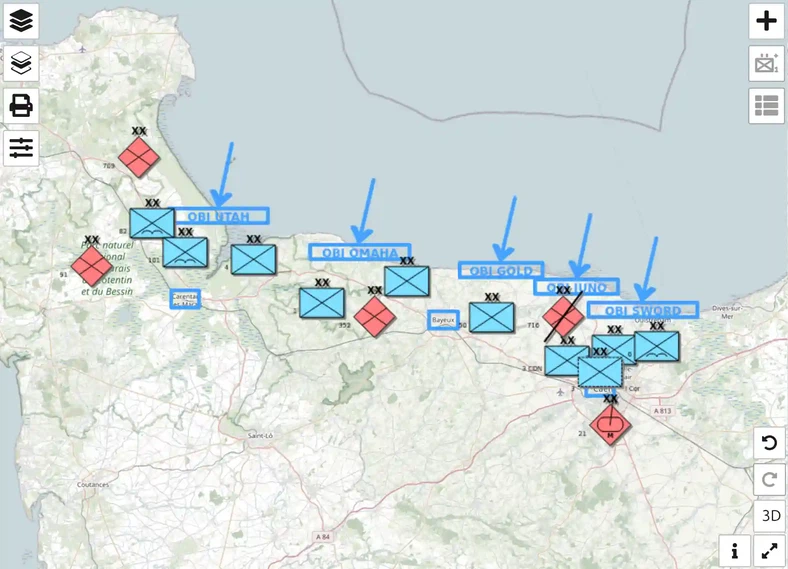
Open the D-Day situation in map.army. It holds three layers: Allied forces, German forces, and beaches and objectives. Work on the map you see; nothing is saved until you save it in Step 5.
Step 1: Mark the losses of the 716th Infantry Division
By the evening the German 716th Infantry Division, which held the coast from Gold to Sword, had lost most of its positions. The operational condition of a symbol shows how fit for combat a unit still is.
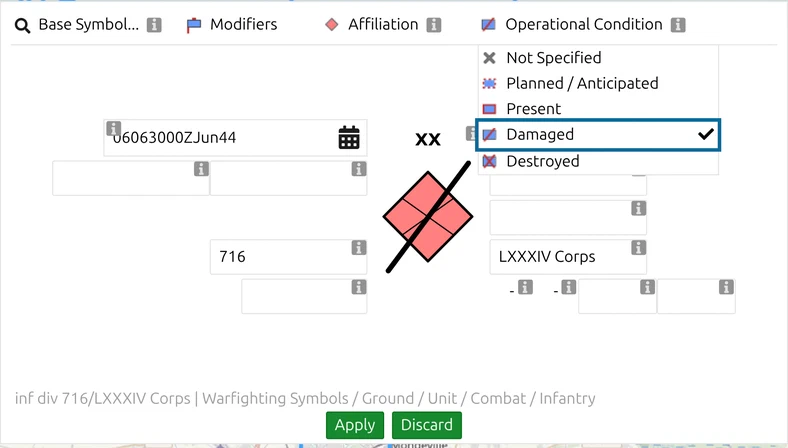
- Click the red 716 division symbol north of Caen to select it, and click MSS Symbol Editor in the toolbar.
- Click Operational Condition, the fourth control in the editor’s top row. The list reads Not Specified, Planned / Anticipated, Present, Damaged and Destroyed; Present is ticked.
- Click Damaged, then Apply.
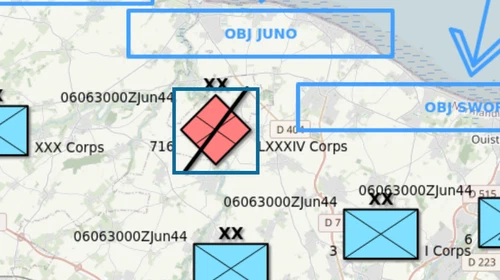
A black diagonal slash now crosses the frame. Destroyed is for a unit that no longer fights; the 716th fought on, so Damaged is the honest choice.
Step 2: Give the 21st Panzer Division a more exact symbol
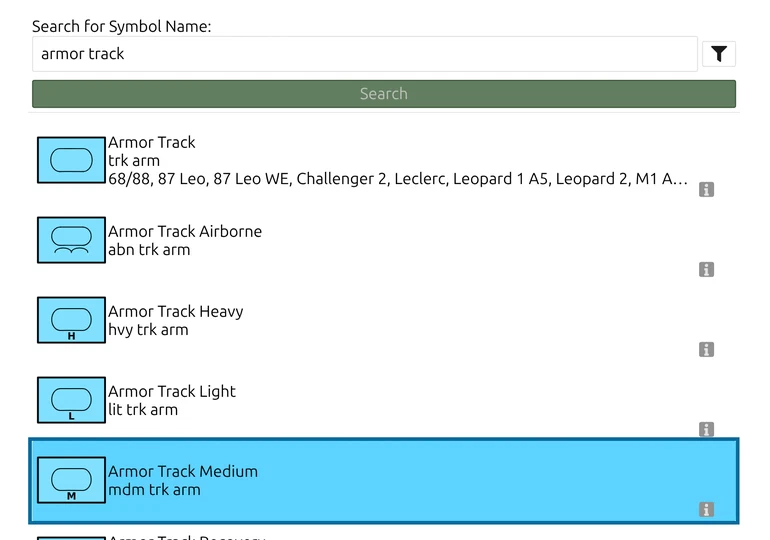
The 21st Panzer Division is drawn as tracked armour. Its tanks were mostly the medium Panzer IV, and MIL-STD-2525C has a symbol for that. Base Symbol… swaps the symbol and keeps every label.
- Select the red 21 symbol south of Caen and open the MSS Symbol Editor.
- Click Base Symbol…, the first control in the editor’s top row.
- Type armor track and search. The symbol names are in US English.
- Click Armor Track Medium once, so the row turns blue, then click the check icon at the top right of the dialog.
- Click Apply.
The symbol stays red and keeps its designation 21; an M, for medium, appears under the tank oval. A swap to a symbol of another kind, such as a line, is refused with Could not replace the symbol: Incompatible MSS Symbols.
Step 3: Show the counter-attack towards the coast
In the late afternoon the 21st Panzer Division attacked north. Some of its troops reached the coast at Lion-sur-Mer, between Juno and Sword, before they pulled back. The direction of movement shows such a move on the symbol itself.
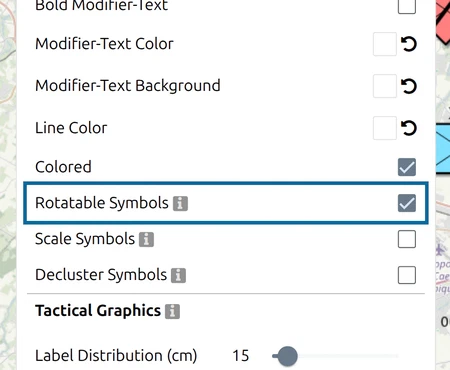
- Click Options in the toolbar and untick Rotatable Symbols under Symbol Format. Ticked, the app turns the whole symbol to the direction; unticked, it draws an arrow from the symbol, as military maps do. Close the Options panel.
- Select the 21 symbol and click View and edit graphic’s coordinates in the toolbar.
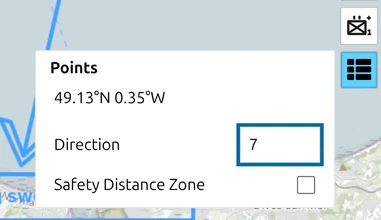
- Type 7 in the Direction field and press Enter. The value is in degrees from north, so 7 points almost straight north.
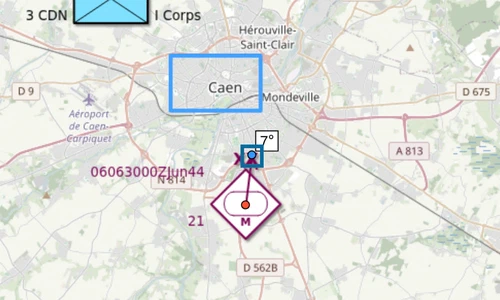
An arrow now leaves the symbol towards the coast, and a small label shows 7°. While the symbol is selected, the blue dot at the end of the arrow is the direction handle: drag it to set the direction by eye instead of typing it.
Step 4: Plan the attack on Caen
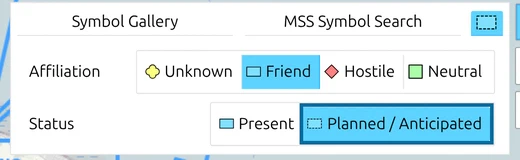
Caen was the British 3rd Infantry Division’s objective for D-Day, and it did not get there. A planned symbol, drawn with a dashed frame, shows where a unit is meant to be, not where it is.
- Click Layers and click D-Day 1944 - Allied forces so the pencil icon marks it as the active layer. New symbols go onto the active layer.
- Click + (Add new MSS Symbol) and open its third tab, the one with the coloured square. Under Status click Planned / Anticipated; leave Affiliation on Friend. The tab icon turns dashed.
- Switch to MSS Symbol Search, search for infantry and click Infantry.
- Close the panel and click the map just north of the Caen objective.
- In the MSS Symbol Editor, set the echelon to Division (click None, then Division), the designation to 3 and the higher formation to I Corps, then click Apply.
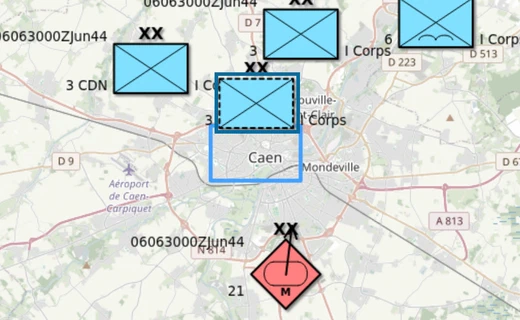
The setting on the third tab stays until you change it, so switch Status back to Present before you place the next unit.
Step 5: Save the evening situation
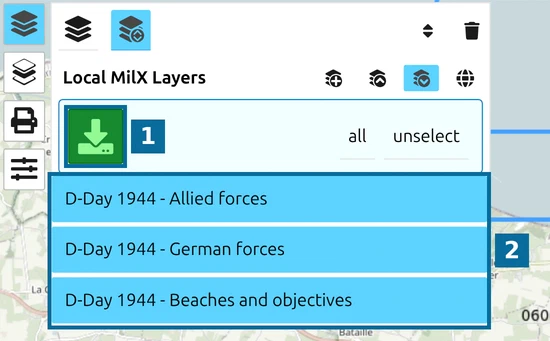
In the Layer-Manager, click Save as MilX. All three layers are selected; click the green download button. The file lands in your Downloads folder, named LayerCollection_ with the date and time; rename it there, for example to d-day-evening.milxlyz, so it is not mixed up with the morning situation.
Next tutorial
Continue with Work together on a shared map, to keep the situation current together with others. Every control used here is described in the Symbol Editor and the Point List.
Last updated: