On this page
Terrain Analysis with OAKOC, Step by Step on the Map
Tutorial 14 of 17 · Intermediate · 50 min
Work through the ground of your area of operations factor by factor and end with one layer that shows where forces can move, where they are blocked, and which ground matters.
Doctrine sums up the military aspects of terrain as OAKOC: Observation and fields of fire, Avenues of approach, Key terrain, Obstacles, Cover and concealment — plus the weather, which changes all five. This tutorial follows that order on the map, but draws obstacles first, because the avenues of approach are what is left between them.
You need
map.army in a current desktop browser, your mission and the boundaries of your area of operations, and some practice in placing symbols and saving a layer (the beginner tutorials). A weather forecast for the period of the operation helps for the last step. Plan 45 to 60 minutes for a battalion-sized area.
Step 1: Set up the map for terrain work
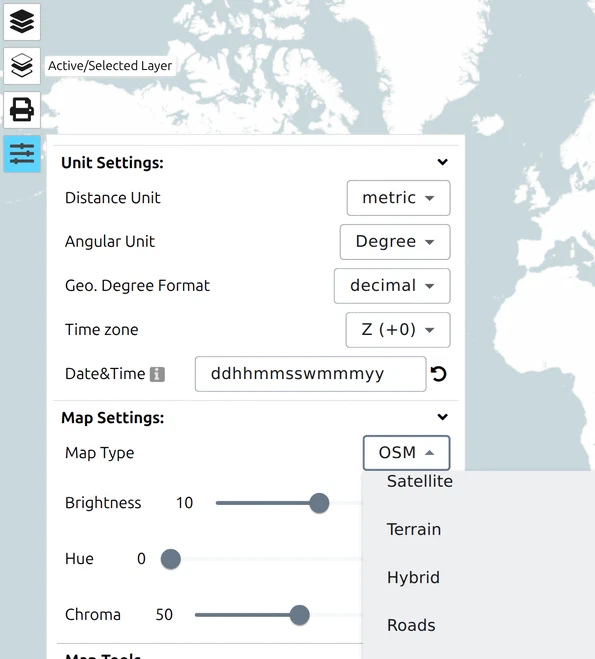
- In the Options, set Map Type to Terrain for relief shading, or to a topographic map such as OpenTopoMap or your national survey map for contour lines and vegetation. Switch to Satellite now and then to see forests and built-up areas as they are.
- Open the Layer-Manager, click New MilX Layer and rename the new layer to Terrain analysis. Click its name so that it is the active layer — everything you draw now lands on it, separate from your own and enemy forces.
Step 2: Read the ground in 3D
- Switch to the 3D view and fly over the area along the axes you expect.
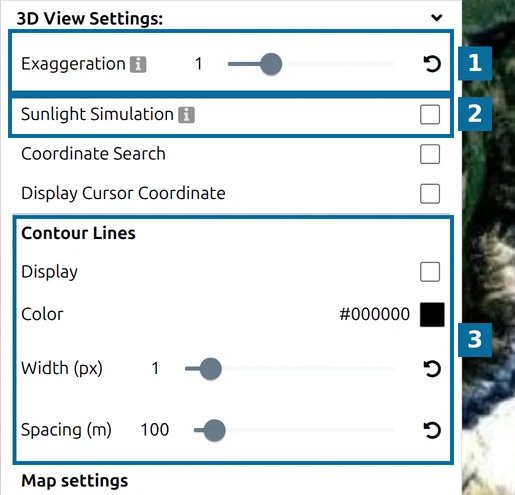
- In the 3D View Settings, raise Exaggeration a little so that slopes and ridges stand out, and switch on Contour Lines (100 m spacing for an overview, 20 m for detail).
- Turn on Sunlight Simulation and drag the timeline to the hours of the operation: slopes in shadow are where observation is poor and concealment is good.
- Hover over the map to read the ground elevation at any point, and use the distance measurement to check how far a ridge sees.
Step 3: Obstacles and restricted terrain
Mark everything that stops, slows or channels movement — rivers, steep slopes, dense forest, built-up areas, existing obstacles.
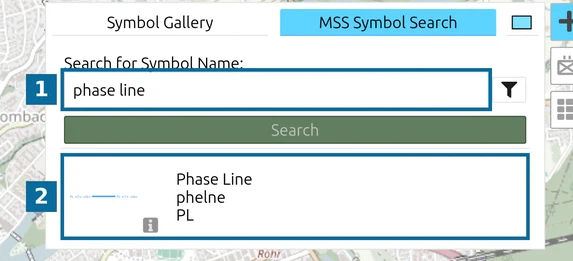
- Open the symbol search, type obstacle and pick Obstacle Restricted Area. Draw it around ground that vehicles cannot cross (NO-GO), such as slopes too steep for your vehicles.
- For linear obstacles — a river, a railway embankment, a ravine — use the obstacle Line from the same results.
- Mark existing antitank ditches, walls or minefields with their own obstacle symbols, so the reader sees the type of obstacle.
- Write the reason into the T field of each graphic (NO-GO slopes, River Inn): a terrain analysis is only useful if others can follow it.
Step 4: Avenues of approach and key terrain
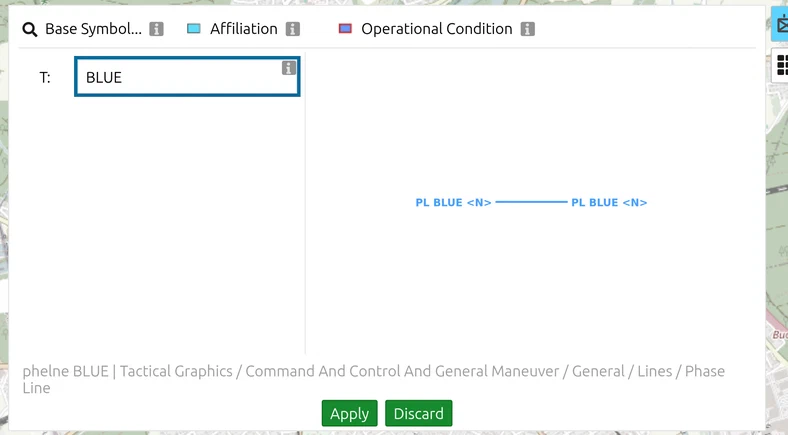
- Avenues of approach are the routes left between the obstacles that are wide enough for the force you expect. Search axis of advance, pick the ground axis, and draw one for each route. Set Affiliation to Hostile in the Symbol Editor for enemy avenues, and name them AA 1, AA 2 in the T field.
- Key terrain is ground whose control gives a marked advantage — a bridge, a pass, a junction, a hill that overlooks the valley. Place a Point Of Interest on each and name it K1, K2 with a short reason.
- Where an avenue narrows between obstacles, it becomes a likely place for the enemy to show himself: mark it as a Named Area Of Interest (NAI) for your reconnaissance plan.
Step 5: Observation, fields of fire, cover and concealment
- Place an Observation Post / Outpost symbol on the points that see far into the avenues — the result of your look at the ground in step 2.
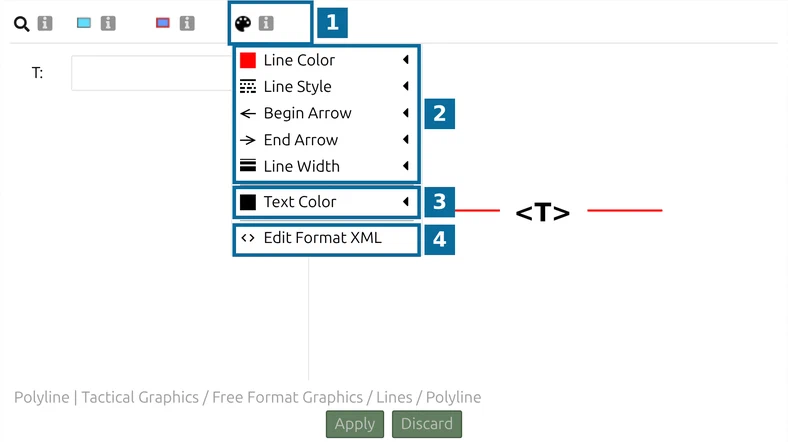
- Draw forests and built-up areas that give cover and concealment as Generic Graphics areas. In the Free-Format Options, give them a green fill with high transparency, so the map underneath stays readable.
- Long open stretches along an avenue are fields of fire: name them in the area’s T field rather than drawing extra shapes — the analysis stays readable.
Step 6: Add the weather and save the result
- map.army does not load weather data. Place a Text from the Generic Graphics at the edge of the area and write the effects of the forecast on the factors above — fog that cuts observation, rain that turns a SLOW-GO meadow into NO-GO, snow on the passes.
- Look over the layer as a whole: every avenue should run between obstacles, every key terrain should matter to at least one avenue.
- Save the layer with Save as MilX. You now have a terrain analysis to share, to print on foil (see the previous tutorial) or to lay under your own plan.
Want to see the result before you start? Load the illustrative terrain-analysis-example.milxlyz — an Alpine valley with slopes, river, an avenue of approach, key terrain, an observation post and an NAI. It shows the drawing conventions, not a real analysis.
Next tutorial
Continue with Let an AI agent draft the terrain analysis, which turns these steps into a repeatable workflow. Details on the tools used here: 3D map view, Generic Graphics, The Layer-Manager.
Last updated: