On this page
Print an Overlay on Foil to Lay Over a Paper Map
Tutorial 12 of 17 · Intermediate · 15 min
Print your situation on transparent foil at the scale of your paper map, with two reference points so the foil lands exactly on the right grid squares.
You need
map.army open in a current desktop browser, with the overlay you want to print already drawn — for example the company attack from the documentation’s operation overlay walkthrough. You also need the paper map (note its scale, e.g. 1:25 000, and its grid), a printer that takes transparent foil, and a ruler. Plan about 15 minutes.
Step 1: Choose the area and the scale
- Click
 Print map or Export to PDF.
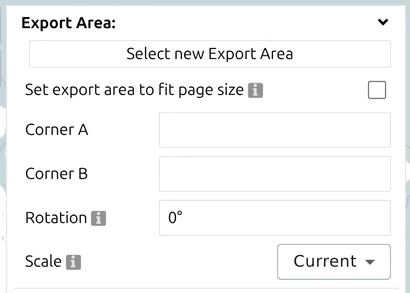
 - In Export Area, set Scale to the scale of your paper map. The list offers fixed steps — 1:10 000, 1:25 000, 1:50 000, 1:100 000, 1:250 000 and more; there is no free entry, so the paper map must use one of them.
- Click Select new Export Area and drag a rectangle over the part of the map the foil should cover. To match a sheet exactly, type the corners into Corner A and Corner B instead.
- Tick Set export area to fit page size if the area should fill exactly one page.
Step 2: Set the page
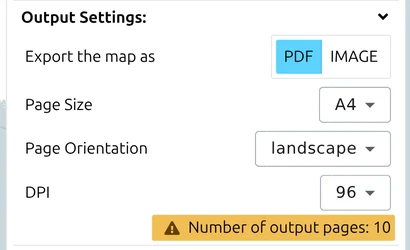
- In Output Settings, set Export the map as to PDF.
- Choose the Page Size your printer takes for foil (A0 to A5 or Letter) and the Page Orientation.
- Set DPI to 300 for sharp symbols and lines.
- Check Number of output pages. If the area needs more than one page at this scale, make it smaller or choose a larger page — a single sheet is far easier to align.
Step 3: Leave out the map, add the grid and reference points
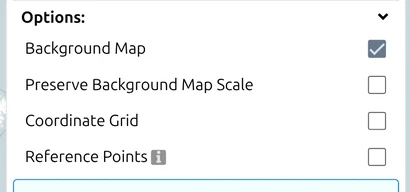
- In Options, clear Background Map. The foil then carries only your symbols; the paper map underneath supplies the terrain.
- Tick Coordinate Grid if you want grid lines on the foil to check the fit across the whole sheet.
- Tick Reference Points. Pick two grid crossings near opposite corners of the area on your paper map and type them into #1 and #2 — for example as MGRS grid references read off the map. The field shows each point in the app’s active coordinate system.
- Raise Line Width if the marks are hard to see on foil.
Each reference point is printed as a cross with its coordinate label. If a warning says that a point is out of the export extent, move it inside the rectangle from step 1.
Step 4: Export, print at 100 % and line it up
- Click Export and wait until the PDF is saved.
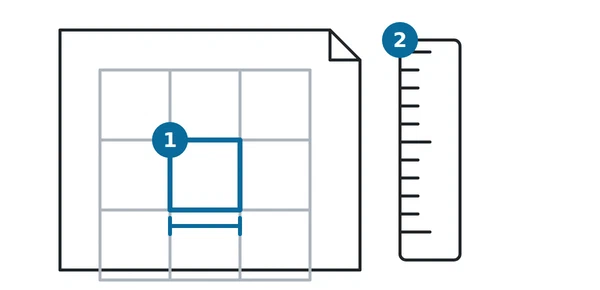
- Open the PDF and print it on the foil at 100 % (also called actual size). Switch off Fit to page, Shrink to fit and any scaling in the printer dialog — any of them silently changes the scale.
- Check the scale with a ruler: at 1:25 000 a 1 km grid square must measure 40 mm, at 1:50 000 it must measure 20 mm.
- Lay the foil on the paper map and put the two reference crosses on the two grid crossings you chose. Your overlay now sits on the right terrain.
The same overlay for other uses
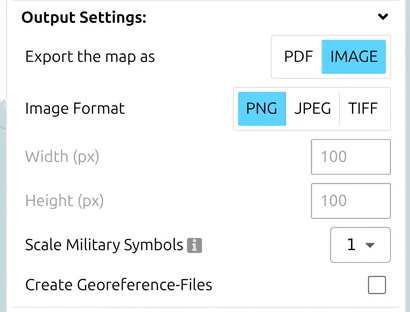
- Transparent PNG — in the same panel set Export the map as to IMAGE and Image Format to PNG, with Background Map cleared. The image keeps a transparent background, ready to lay over a map in a briefing slide. Create Georeference-Files adds a world file for GIS software.
- KMZ for Google Earth — open the Layer-Manager, click the globe icon (Export/Import in other formats), choose KML, tick your layers and download. The file is always a zipped KMZ.
Next tutorial
Continue with Terrain analysis (OAKOC). Every control used here is described in the documentation: Print a Tactical Map to Scale from a PDF, Export a Military Map to PDF, PNG or GeoTIFF and Export a Tactical Map to KML or KMZ for Google Earth.
Last updated: