On this page
Plan a Live-Fire Range on the Map (Training Aid)
Tutorial 13 of 17 · Intermediate · 20 min
Sketch a live-fire range for a briefing: a firing position, a ring for its reach, a Safety Distance Zone in the direction of fire, and a measurement to check distances and bearings.
You need
map.army open in a current desktop browser and about 20 minutes. You should know how to place a symbol; Make a war map shows how. Pick any stretch of open country: this tutorial uses fields near Marthalen, Switzerland, for a fictional Training Area ALPHA. There is no range there.
Step 1: Place the firing position and its range ring
- In the Layers panel, click Open Layer-Manager, then New MilX Layer, and rename the new layer Training Area ALPHA. Close the Layer-Manager and click the layer’s name in the Layers list: a pencil icon marks it as the active layer.
- Click +, switch to MSS Symbol Search, search for infantry and click Infantry. Close the panel, then click the map. The symbol is your firing position.
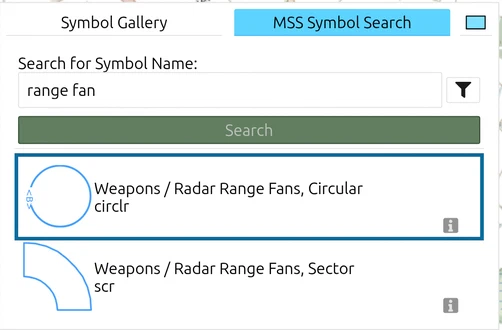
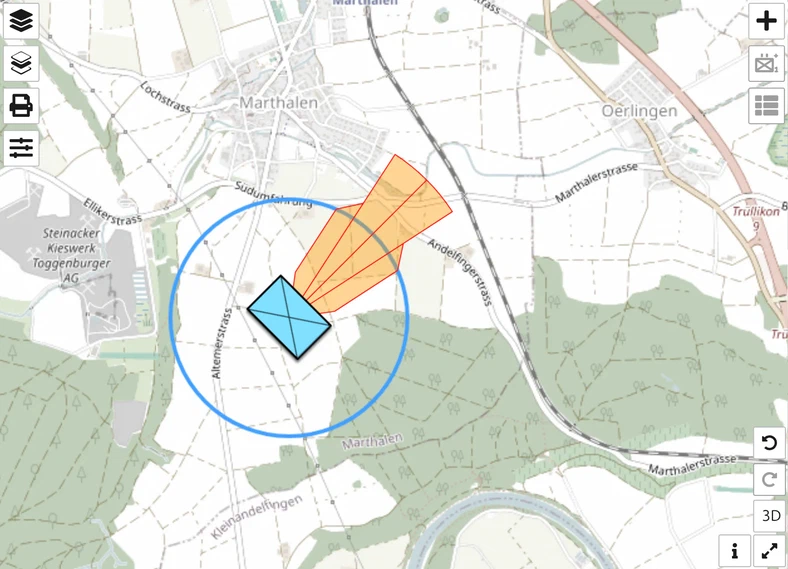
- Click + again, search for range fan and click Weapons / Radar Range Fans, Circular. Close the panel and click the infantry symbol: the ring centres on it.
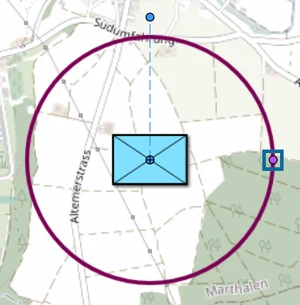
The ring’s first size depends on the zoom. Drag the purple handle on the ring to set its radius, or type it in the Radius field of the point list (View and edit graphic’s coordinates in the toolbar). Press Space to finish.
Step 2: Add a Safety Distance Zone
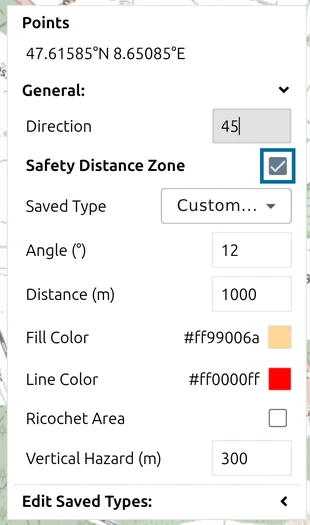
A Safety Distance Zone is the app’s name for what range doctrine calls the surface danger zone (SDZ): the ground that must be clear while you fire. It belongs to an ordinary one-point symbol, not to the range ring.
- Select the infantry symbol and open the point list with View and edit graphic’s coordinates.
- Type 45 in Direction and press Enter: the direction of fire, in degrees from north. The symbol turns to face it.
- Tick Safety Distance Zone. Leave Saved Type on Custom….
The defaults are Angle (°) 12, Distance (m) 1000 and Vertical Hazard (m) 300, drawn as an orange sector with a red outline towards north-east.
Step 3: Show the ricochet area
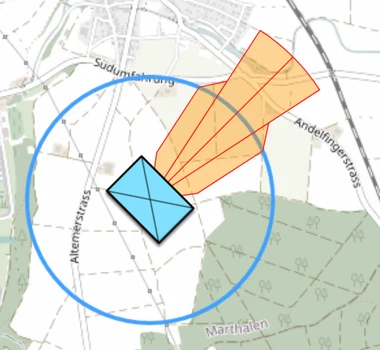
Rounds can glance off the ground and leave the sector at an angle. Tick Ricochet Area in the point list. Four values appear, again schematic defaults: Length (m) 700, Area (m) 100, Start Angle (°) 25 and End Angle (°) 45. The zone gains a band on each side of its base.
Step 4: Keep the zone as a Saved Type
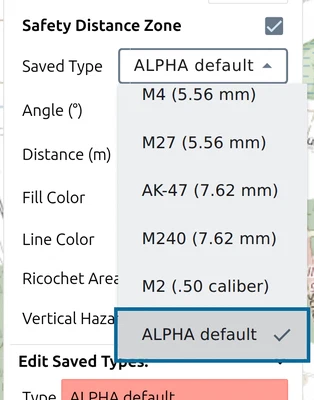
Saved Types is the library of zone settings in the Saved Type list. Save your values once and reuse them on every firing position.
- Expand Edit Saved Types: and type ALPHA default in Type.
- Click Add to the Saved Types. The entry joins the Saved Type list and is selected.
- Click Export Saved Types to a File. map.army saves
SDZ_SavedTypes.json; a colleague loads it with Import Saved Types from a File.
Step 5: Check distances and bearings
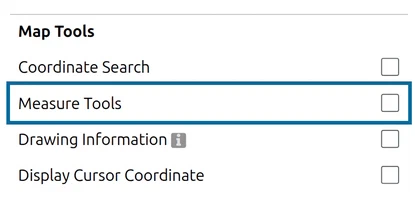
- Click Options and tick Measure Tools under Map Tools. Two buttons appear at the bottom left of the map.
- Click Measure distance on the map, then click the firing position and the tip of the zone.
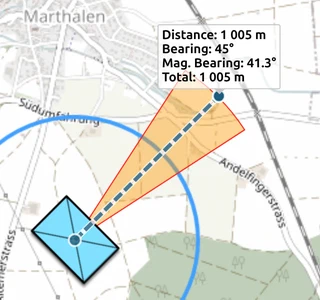
The labels show Distance, Bearing (from true north) and Mag. Bearing (from magnetic north), here about 1 005 m, 45° and 41.3°. Read them before you finish: Esc ends the measurement and removes the line and its labels.
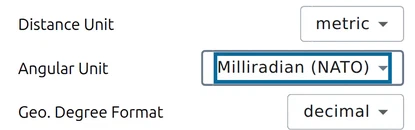
To read bearings in mils, set Angular Unit under Units of Measure: in the Options to Mil (NATO) and measure again: the same line reads 800mrad, on the 6400-mil circle. Measure area on the map works the same way and shows the Area inside the points you click.
Step 6: Save the range sketch
In the Layer-Manager, click Save as MilX and download Training Area ALPHA. The zone is saved with the symbol, so it comes back when you load the file or share the layer. Keep SDZ_SavedTypes.json with it if others are to reuse your Saved Type.
Next tutorial
Continue with Terrain analysis with OAKOC. Every control used here is described in Safety Distance Zones, Range rings and Measurement.
Last updated: