On this page
Organise an Exercise Overlay in Layers
Tutorial 11 of 17 · Intermediate · 15 min
Keep friendly forces, enemy forces and control measures on separate layers, put them in order, make a copy for the next phase, and lock the approved plan so nobody changes it by accident.
You need
map.army open in a current desktop browser and about 15 minutes. You should know what a layer is; Map the D-Day landings builds the situation used here.
A MilX layer is one overlay of military symbols that you can show, hide, save and share on its own. An exercise overlay usually has at least three: own forces, enemy forces and control measures such as objectives and boundaries.
Step 1: Load the three layers
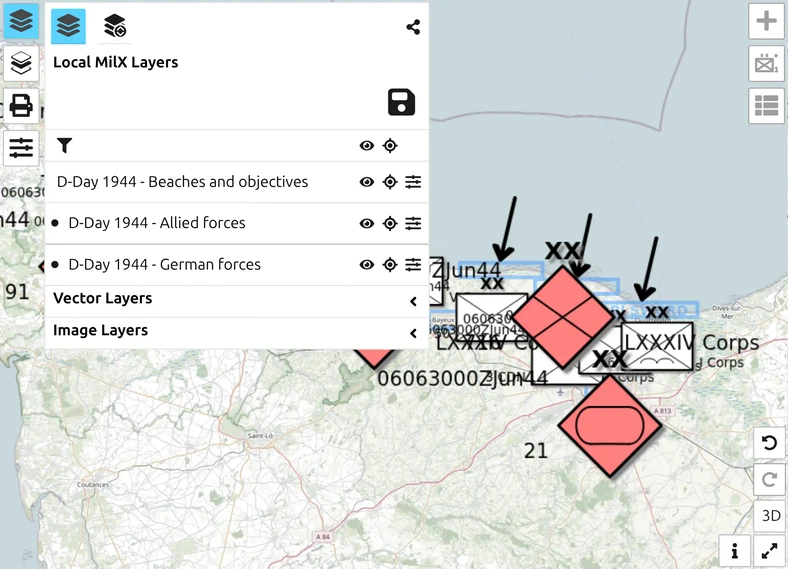
Open the D-Day situation in map.army, or download d-day-normandy-1944.milxlyz and load it with Load MilX in the Layer-Manager.
Click Layers in the toolbar. Under Local MilX Layers you see D-Day 1944 - Allied forces, D-Day 1944 - German forces and D-Day 1944 - Beaches and objectives. The picture above is where this tutorial ends.
Step 2: Put the layers in order
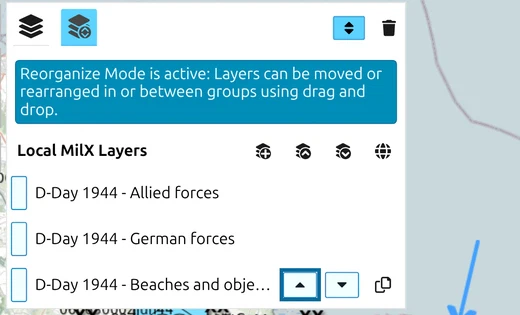
- In the Layers panel, click Open Layer-Manager, the second button in its top row.
- Click Reorganize Layers. A banner confirms Reorganize Mode is active.
- Point at D-Day 1944 - Beaches and objectives and click Move the layer to the top.
The control measures now head the list, above the forces that act on them.
Step 3: Copy a layer for the next phase
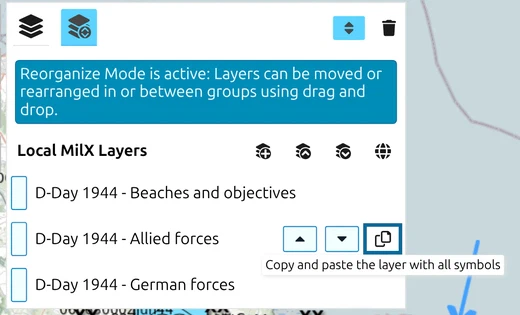
A copy of a layer is the quickest start for the next phase of a plan: the symbols are already in place and you only move what changes.
- Still in Reorganize Layers, point at D-Day 1944 - Allied forces and click Copy and paste the layer with all symbols. The copy, D-Day 1944 - Allied forces Copy, appears right below the original.
- Click Reorganize Layers again to leave the mode.
- Click the copy’s name, type D-Day 1944 - Allied forces phase 2 and click elsewhere to keep it.
Step 4: Delete a layer and get it back
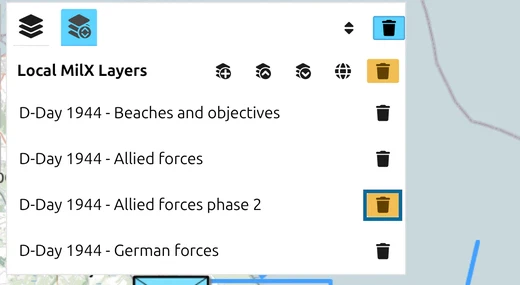
- Click Delete Layers. Every row now has a trash button, Delete MilX Layer.
- Click the trash button of D-Day 1944 - Allied forces phase 2. Because the layer has unsaved changes, a dialog asks for confirmation; click Delete.
- Click Undo (Ctrl + Z) at the bottom right of the map, or press Ctrl+Z.
The layer comes back with its name and symbols, at the end of the list. Click Delete Layers again to leave the mode and close the Layer-Manager with Close Layer-Manager.
Step 5: Fade the objectives and enlarge the enemy symbols
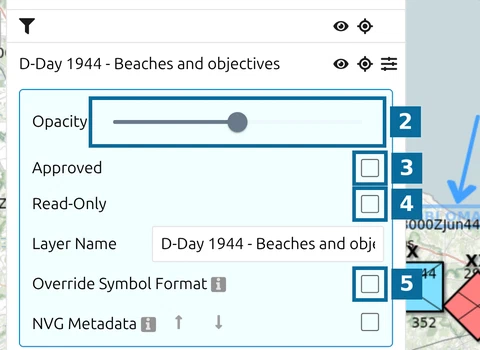
In the Layers panel, every layer row has a Settings button. Its panel holds:
- 2 — Opacity: how transparent the layer is.
- 3 — Approved: marks the plan as approved.
- 4 — Read-Only: locks the layer.
- 5 — Override Symbol Format: gives this layer its own symbol format.
- Open the settings of D-Day 1944 - Beaches and objectives and drag Opacity to 50%. The objective areas fade, and the units on top of them stand out.
- Open the settings of D-Day 1944 - German forces, tick Override Symbol Format and set Symbol Size (mm) to 20. The German symbols grow; the other layers keep the size set in the app’s Options.
Untick Override Symbol Format and the layer’s own format is dropped without a warning; the layer returns to the global format.
Step 6: Mark the plan approved and lock it
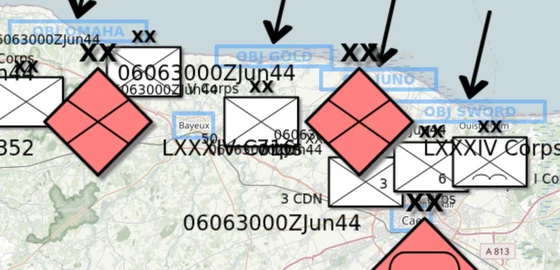
- Open the settings of D-Day 1944 - Allied forces and tick Approved. Its symbols lose their blue fill and are drawn white with a black outline, while the other layers stay in colour.
- Tick Read-Only. Opacity, Approved, Layer Name and Override Symbol Format grey out, and the layer’s symbols can no longer be selected or moved. Set Approved before Read-Only, since the lock also freezes it.
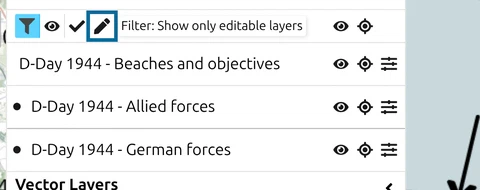
With many layers, the list itself needs sorting out. Click the funnel button above the list to show three filters: Filter: Show only visible layers, … approved layers and … editable layers. Click the editable filter: the locked Allied layer disappears from the list, leaving the layers you can still work on. Show / Hide all the layers and Zoom all layers act on every layer at once.
Next tutorial
Continue with Print an overlay, to put the approved plan on paper. Every layer control is described in the Layer-Manager and Edit a layer.
Last updated: