On this page
WW2 Map Maker: Map the D-Day Landings of 6 June 1944
Tutorial 6 of 17 · Intermediate · 30 min
Map a historical battle: the Allied landings in Normandy on 6 June 1944, with one layer per side, each division labelled with its number, corps and date, and attack arrows onto the five beaches.
You need
map.army open in a current desktop browser. No account is needed. Plan about 30 minutes. You should know how to place a symbol on the map; Make a war map shows how.
You build the start of the situation by hand: one layer, one division with all its labels, and one attack arrow. Then you load the complete situation, with all 14 divisions and the five beaches, and use it to compare both sides.
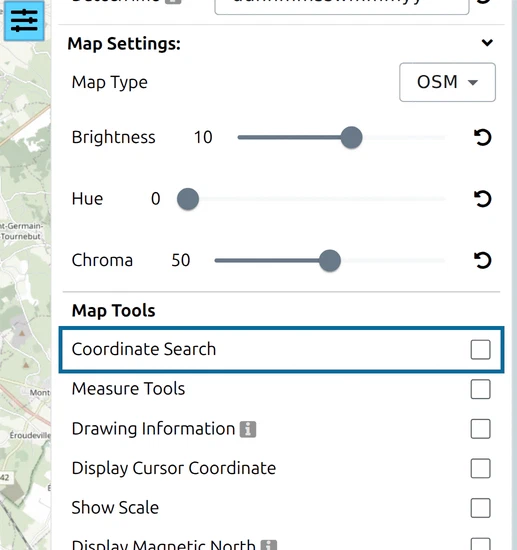
Click Options in the toolbar on the left and tick Coordinate Search under Map Tools. A magnifier button appears at the bottom left of the map. Close the Options panel.
Step 1: Create one MilX layer per side
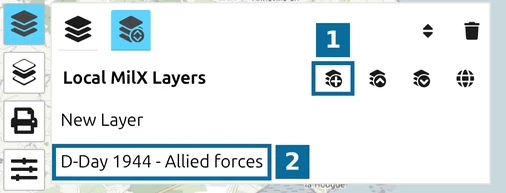
A MilX layer is one overlay of military symbols that you can show, hide and save on its own. Keeping each side on its own layer lets you compare them later.
- Click Layers in the toolbar, then the second button in its top row to open the Layer-Manager.
- 1 — New MilX Layer: adds a layer named New Layer 1.
- 2 — the new layer: click its name, type D-Day 1944 - Allied forces and click elsewhere to keep it.
- Go back to the layer list and click the new layer’s name. A pencil icon marks it as the active layer: new symbols go onto it, and without an active layer the + button does nothing.
Step 2: Place the US 1st Infantry Division at Omaha Beach
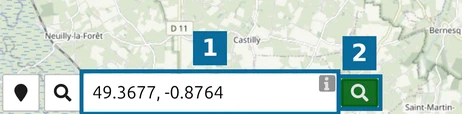
- Click the magnifier button at the bottom left of the map.
- Type the latitude and longitude of Omaha Beach, 49.3677, -0.8764 (marked 1).
- Click the green Search button (marked 2).
The map centres on the point and opens a card with its coordinates; close it with its x. The zoom stays as it was, so zoom in until the coast fills the screen.
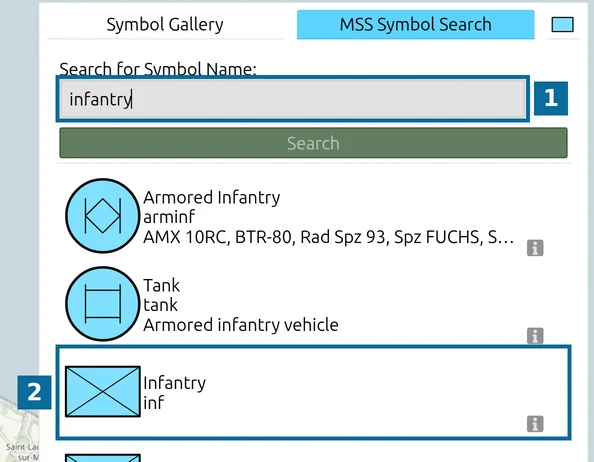
- Click + (Add new MSS Symbol). The panel opens on Symbol Gallery; switch to MSS Symbol Search.
- 1 — type infantry and click Search.
- 2 — click Infantry.
- Close the panel and click the map just inland of the beach. The symbol appears in blue, the colour of friendly forces.
Step 3: Label and date the division
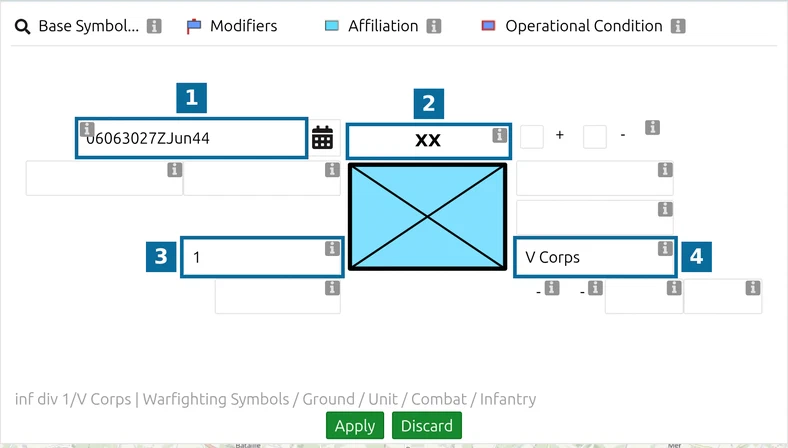
Click the symbol to select it and click MSS Symbol Editor in the toolbar. The fields around the symbol preview are its modifiers, the texts and marks a military symbol carries. They have no visible label; click the info icon beside a field to see its name.
- 1 — Date & Time [Modifier W]: set below.
- 2 — Echelon (Level of Command) [Modifier B]: pick XX, Division. The echelon is the size of the unit.
- 3 — Designation of unit / subunit [Modifier T]: type 1.
- 4 — Higher Formation [Modifier M]: type V Corps, the corps the division belonged to.
Leave the editor open for the date.
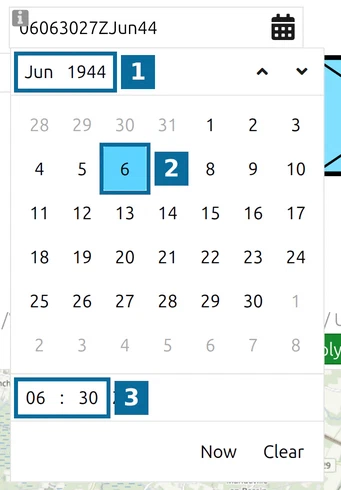
Click the calendar button of the Date & Time field.
- 1 — click the month and year, page back through the years to 1944, and pick Jun.
- 2 — click 6.
- 3 — set the time to 06:30, the time of the first landings.
The field shows a military date-time group such as 06063022ZJun44: day, hours, minutes, seconds, time zone Z (UTC), month and year. The seconds come from the clock and cannot be set. Use the picker rather than typing: a typed two-digit year 44 is read as 2044.
Click Apply, close the editor with its toolbar button, and press Space to finish editing the symbol.
Step 4: Draw the main attack
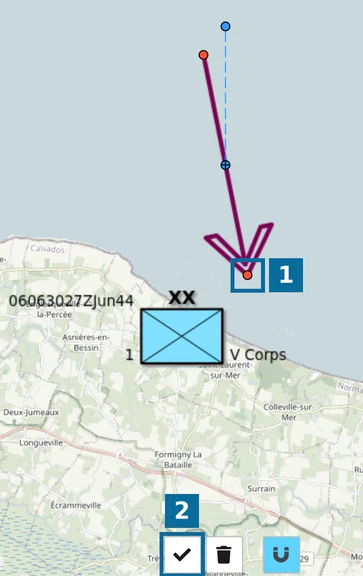
- Click +, search for main attack and pick the second result, the plain arrow (Direction of Attack). The first result, the hollow arrow, is an axis of advance and is harder to shape by clicks.
- Click the map. A default arrow appears with handles.
- 1 — drag the tip onto the beach and the tail out to sea.
- 2 — Finish Editing (Space), or press Space.
Step 5: Load the complete situation
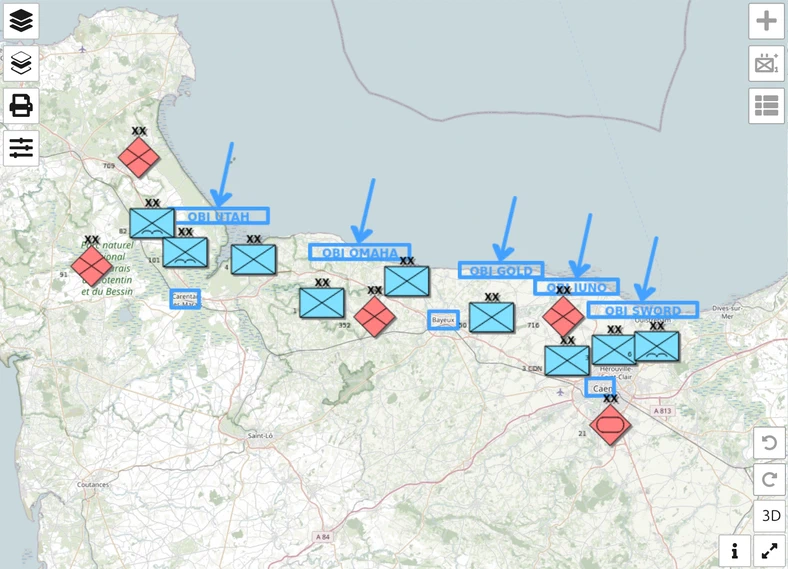
Drawing all 14 divisions by hand takes a while, so the finished situation is ready to load:
- Open the D-Day situation in map.army, or
- download d-day-normandy-1944.milxlyz and load it with Load MilX in the Layer-Manager.
It holds three layers, D-Day 1944 - Allied forces, D-Day 1944 - German forces and D-Day 1944 - Beaches and objectives. The beaches are drawn as Objective areas, which is why their labels start with OBJ:
| Division | Side | Higher formation | Sector |
|---|---|---|---|
| US 4th Infantry | Allied | VII Corps | Utah |
| US 82nd and 101st Airborne | Allied | VII Corps | behind Utah |
| US 1st and 29th Infantry | Allied | V Corps | Omaha |
| UK 50th Infantry | Allied | XXX Corps | Gold |
| 3rd Canadian Infantry | Allied | I Corps | Juno |
| UK 3rd Infantry | Allied | I Corps | Sword |
| UK 6th Airborne | Allied | I Corps | east of the Orne |
| 709th Infantry | German | LXXXIV Corps | Cotentin, Utah |
| 91st Air Landing | German | LXXXIV Corps | Cotentin |
| 352nd Infantry | German | LXXXIV Corps | Omaha, Gold |
| 716th Infantry | German | LXXXIV Corps | Gold, Juno, Sword |
| 21st Panzer | German | south of Caen |
The 91st Air Landing Division is shown with the plain infantry symbol, since MIL-STD-2525C has no symbol for an air-landing unit.
Step 6: Compare the sides and save
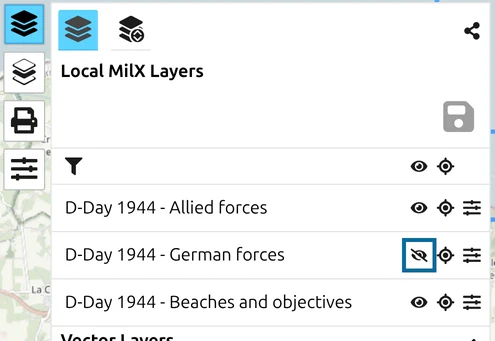
Click Layers. The eye icon of each layer shows or hides it; the one at the top switches all layers at once. Hide D-Day 1944 - German forces:
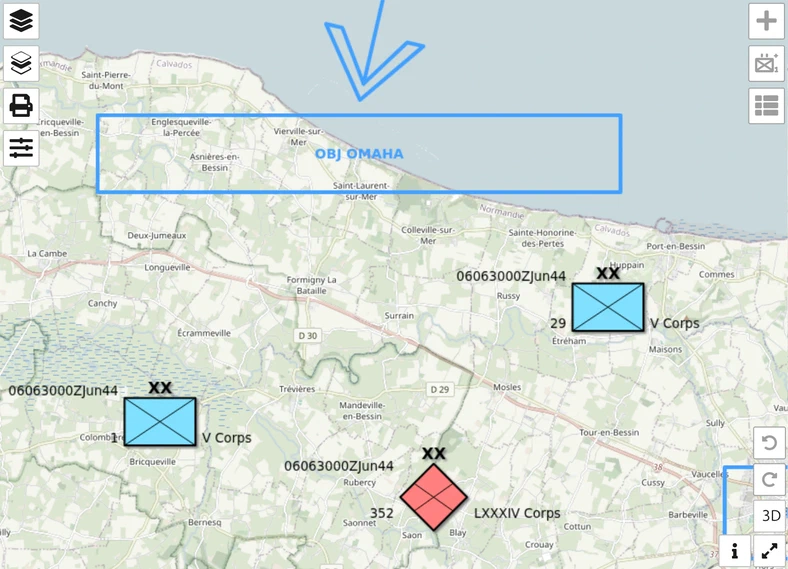
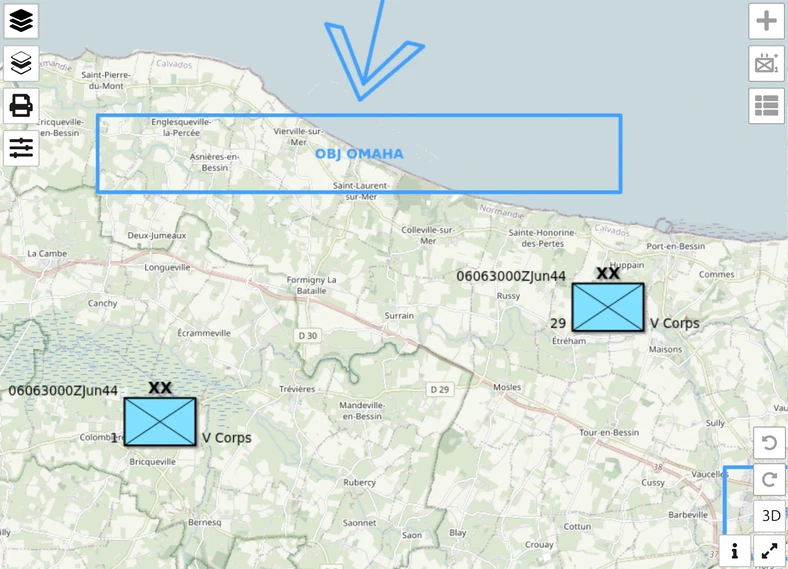
At Omaha the German 352nd Infantry Division disappears and only the two US divisions remain. One layer per side is what makes this possible: brief your own plan, then show the opposing forces on top.
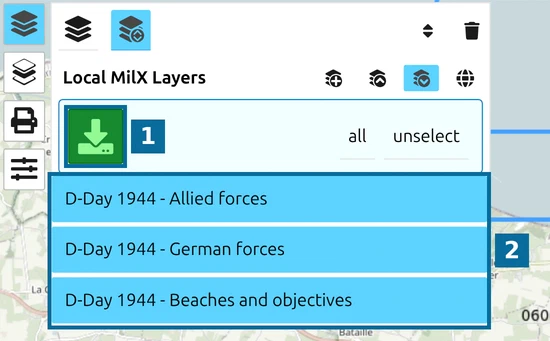
In the Layer-Manager, click Save as MilX. All layers are selected.
- 1 — the green download button saves the file to your Downloads folder.
- 2 — the selected layers; click a row to leave it out.
The file is named LayerCollection_ followed by the date and time. Load it again later with Load MilX, or send it to others.
Next tutorial
Continue with Update the situation, to bring this map up to the evening of D-Day. For every field of the symbol editor see the Symbol Editor and for layers the Layer-Manager.
Last updated: