On this page
Turn a GPX Track into a March Route
Tutorial 10 of 17 · Intermediate · 10 min
Load a recorded GPX track into the map as a vector layer, then convert it into a MilX® march route whose points and waypoints you can edit like any other military graphic.
You need
map.army open in a current desktop browser and about 10 minutes. Download the sample track march-route-sample.gpx: a fictional 9.6 km route near Münsingen, Switzerland, with four waypoints. Any GPX, KML, GeoJSON or shapefile of your own works the same way.
A vector layer shows lines, areas and points from a GIS or GPS file on top of the base map. It only displays them: to edit them as military symbols you convert the layer to a MilX layer, the format map.army draws its overlays in.
Step 1: Pick the GPX file
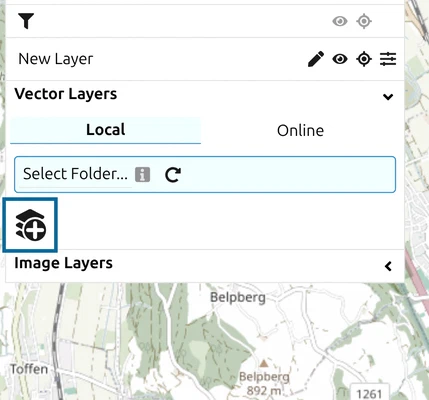
- Click Layers in the toolbar and expand the Vector Layers group.
- On the Local tab, click the Add Layer button with the stacked-layers icon. A form opens.
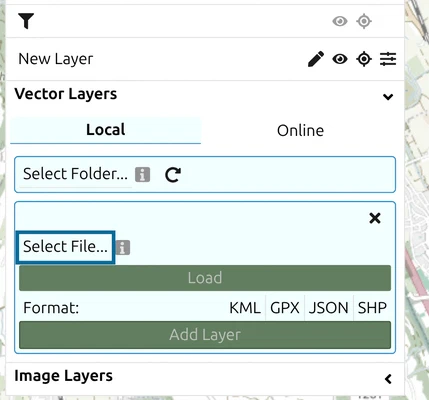
- Click Select File… and pick
march-route-sample.gpx.
.kml, .gpx, .json / .geojson and .shp. A .kmz is a zipped KML: unzip it first and load the .kml inside.Step 2: Load and add the layer
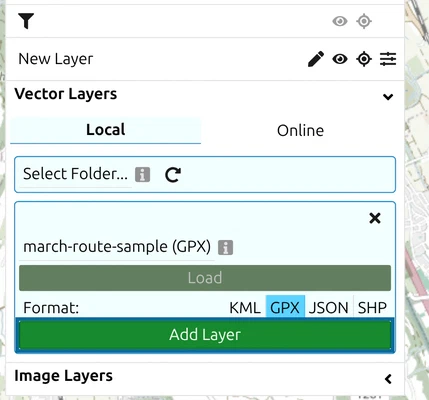
- The form now reads march-route-sample (GPX). Click Load. The format GPX is highlighted.
- Click the green Add Layer button.
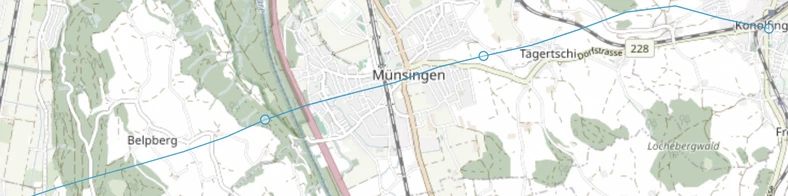
The track appears as a thin light-blue line with a circle at each waypoint. The map does not move to it on its own: pan to Münsingen, south-east of Bern. The row of the new layer has Show / Hide, an Opacity slider and Remove the layer.
Step 3: Convert the track to MilX
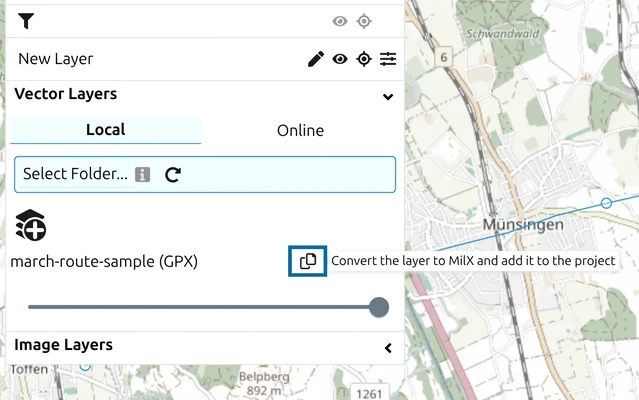
Click the convert button in the vector layer’s row. Its tooltip reads Convert the layer to MilX and add it to the project.
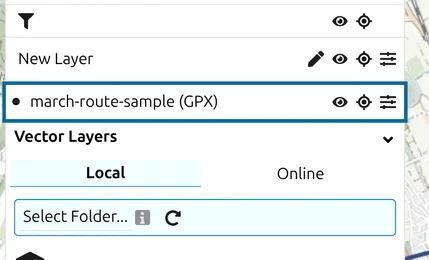
A new MilX layer named march-route-sample (GPX) appears in the layer list. The track is now a thick dark-blue line labelled March route, and each waypoint is a pin symbol with its name. The vector layer stays on the map: click its Show / Hide to hide it, so you see only the MilX layer.
Step 4: Edit the route
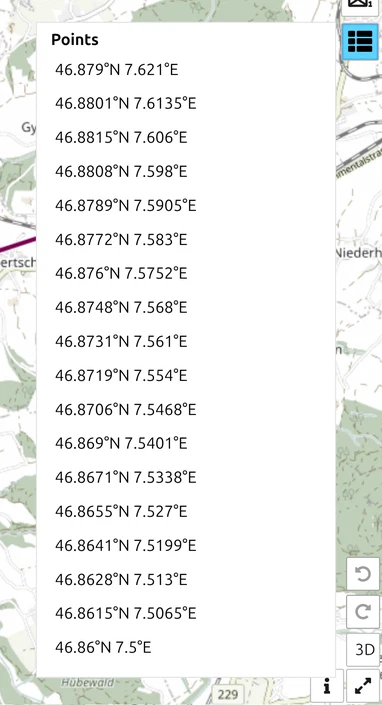
- Click the route line to select it. It turns purple and shows its points as orange-red handles; drag a handle to move that point.
- Click View and edit graphic’s coordinates in the toolbar. The point list shows one row per point, Point 1 to Point 18.
- Change a coordinate, for example to move the start, and click Apply Changes. The line follows.
Step 5: Turn a waypoint into a checkpoint
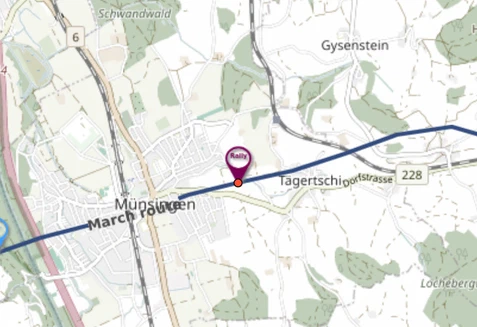
Each waypoint became a one-point symbol, a Point of Interest. Give the checkpoint its proper military symbol:
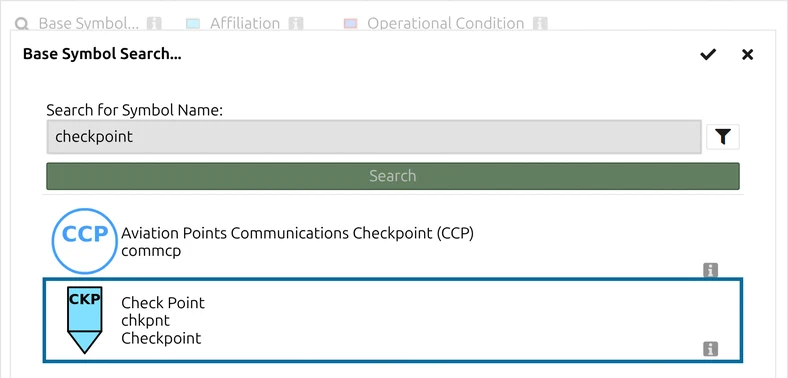
- Select the Checkpoint pin and click MSS Symbol Editor in the toolbar.
- Click Base Symbol…, type checkpoint and click Search.
- Click Check Point once, then the check icon (Confirm) at the top right of the dialog, then Apply.
The pin becomes the pennant-shaped checkpoint symbol marked CKP, and it keeps its name Checkpoint. The other waypoints can be swapped the same way.
Result
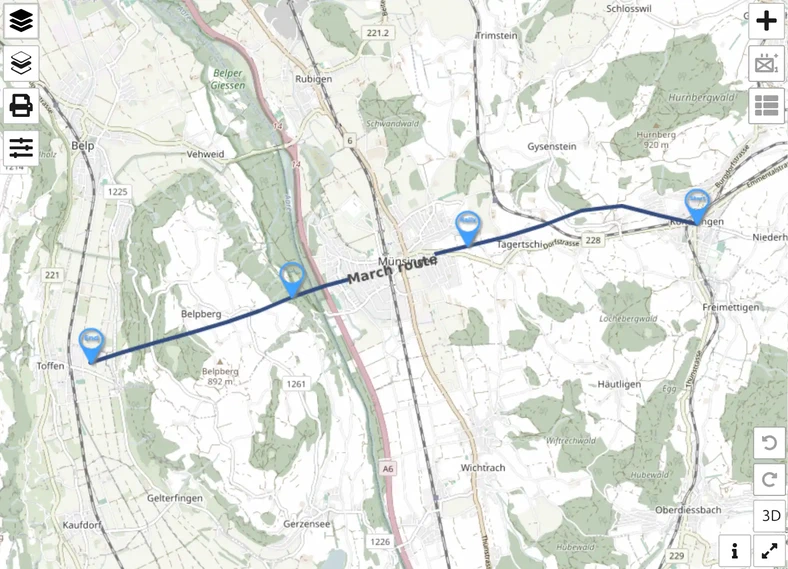
The march route is now a MilX layer: it is listed under Local MilX Layers in the Layer-Manager (Open Layer-Manager in the Layers panel), saves with Save as MilX, travels in a share, and prints with the rest of your overlay. The GPX vector layer is only needed again if you want to convert a fresh copy.
Next tutorial
Continue with Print an overlay. Every control used here is described in Import Vector Layers: KML, GeoJSON and Shapefile and in the Point List.
Last updated: