On this page
Put Your Own Map Under the Overlay
Tutorial 9 of 17 · Intermediate · 15 min
Put your own map under the overlay: a scanned paper map, a sketch, an aerial image or a map from a GIS. You fit it to the base map once and reuse the placement every time.
You need
map.army open in a current desktop browser and about 15 minutes. To follow along without your own files, download the samples, all made with map.army or drawn for this tutorial:
- scan-sample.png: a map of Münsingen, Switzerland, tilted like a scan, with no position data.
- export-sample.png and export-sample.pgw: the same map with a world file, a small text file that holds the image’s position.
- sketch-sample.jpg: a hand-drawn sketch of a route.
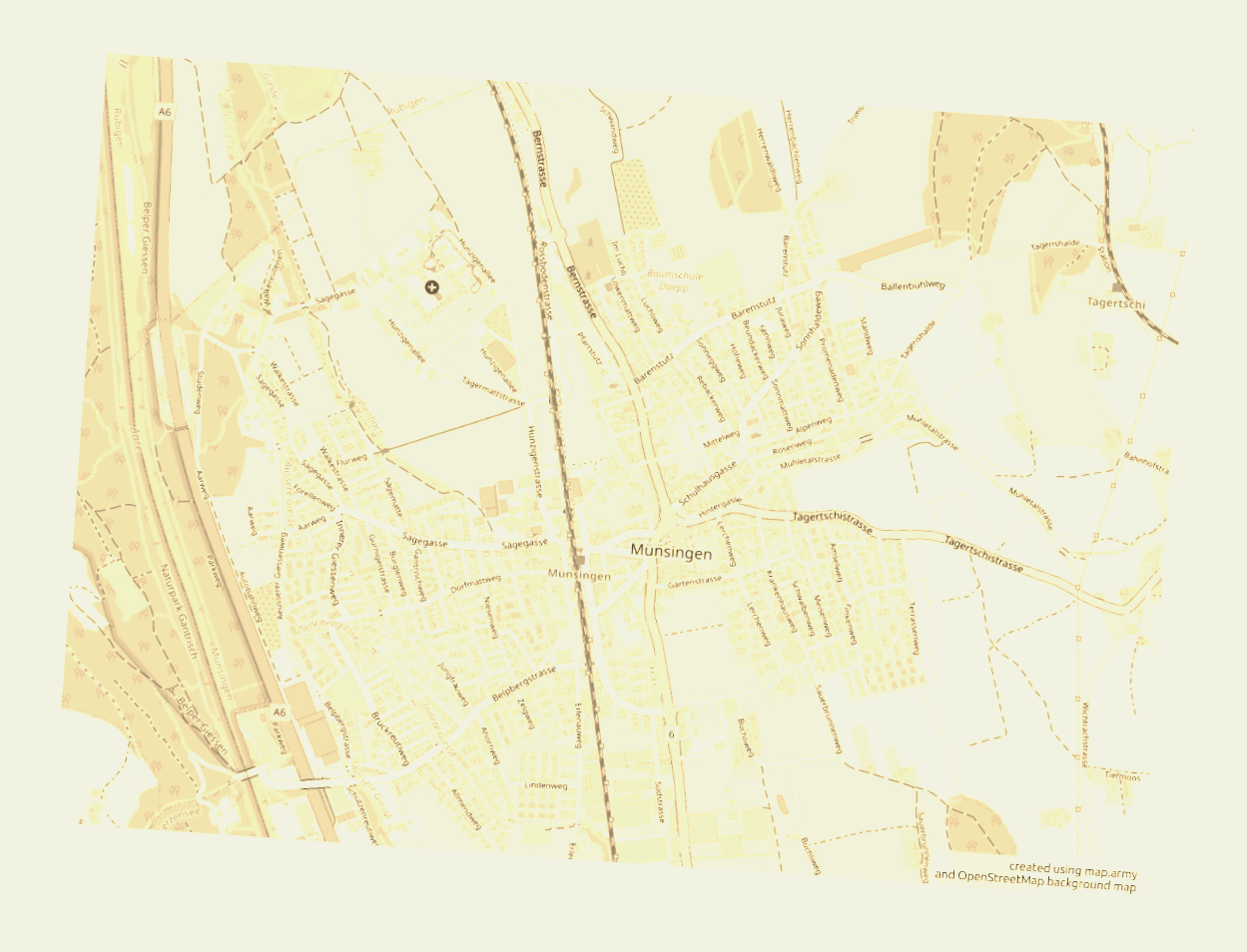
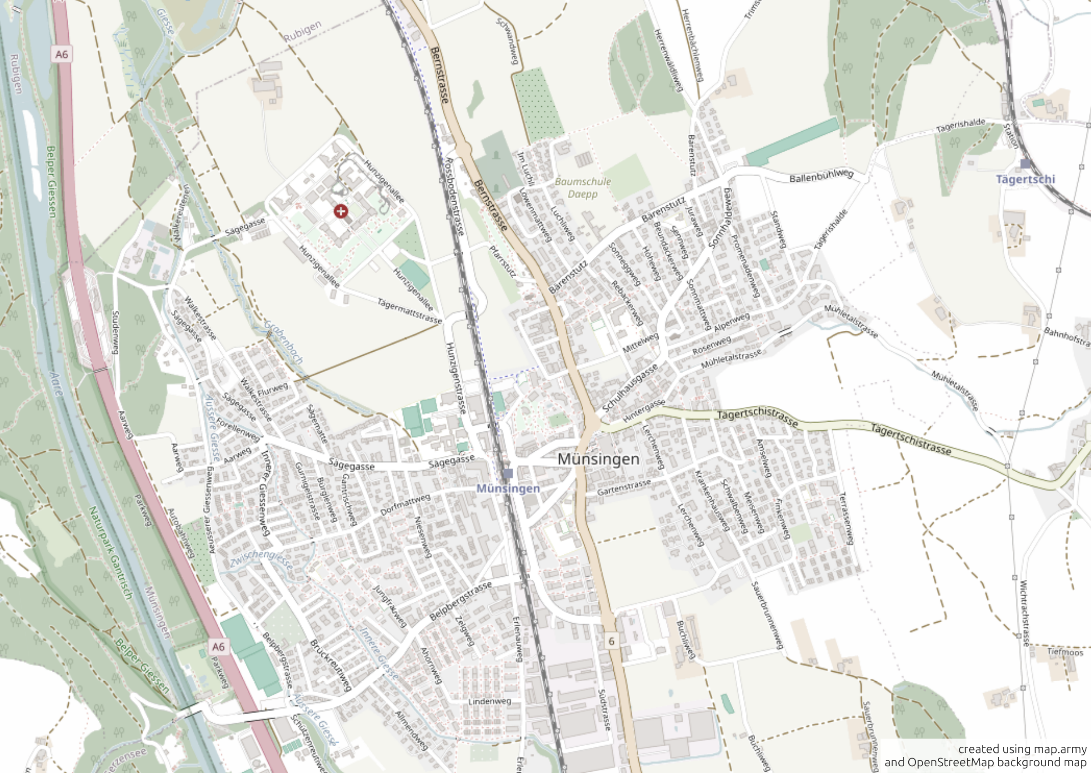
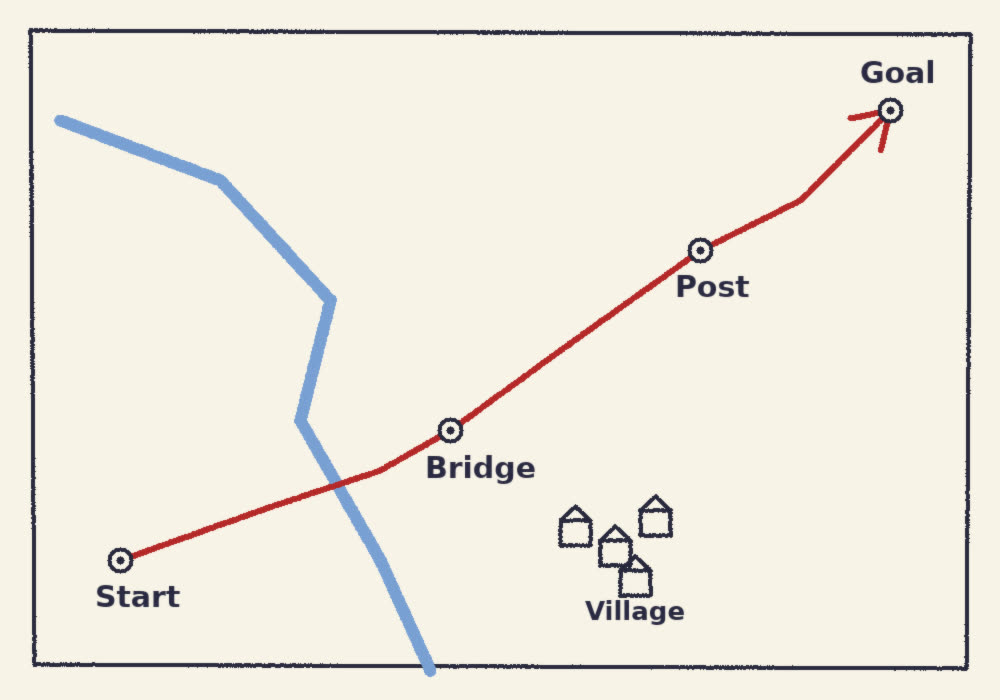
An image layer shows a picture on the map. It stays a picture: you cannot select or edit what is drawn on it, and it is not saved inside a MilX® file.
Which file do you have?
| You have | Load it as | File types | Place it with |
|---|---|---|---|
| A scanned paper map | image layer | .png, .jpg | Ref. Points: three points you find on the image and on the map (Steps 1-4) |
| A photo of a sketch or a whiteboard | image layer | .jpg, .png, .webp | Interactive: move, scale and rotate it by eye (try sketch-sample.jpg) |
| A map exported from a GIS or from map.army with a world file | image layer | image plus .pgw, .jgw, .j2w, .tfw or .wld | From File (Step 5) |
| A satellite or drone image | image layer | .jpg, .png | From File if it has a world file; Manual if you know the coordinates of its four edges (north-up only); else Ref. Points |
| A map image on a website | image layer, Online tab | its address | Ref. Points or Interactive; the website must allow other sites to load the image |
| A vector drawing | image layer | .svg | any mode; it is shown as a picture |
| GPS tracks, KML, GeoJSON, shapefiles | vector layer | .gpx, .kml, .json, .shp | see Turn a GPX track into a march route |
| A WMTS or WMS map service | own base map | its address | see Connect your own map service |
Image layers accept .png, .jpg / .jpeg, .bmp, .webp and .svg. A GeoTIFF (.tif) is refused with Incorrect Format (TIF): save it as PNG or JPEG with a world file in your GIS first. A very large image can fail with Unable to load the image; shrink it or cut it in two.
Step 1: Load the scan
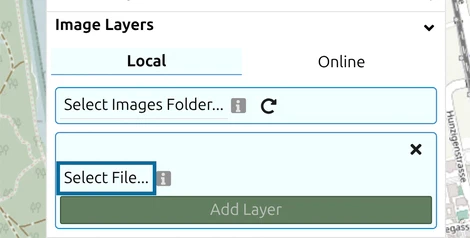
- Click Layers in the toolbar and expand Image Layers.
- Click the Add Layer button with the stacked-layers icon, then Select File…, and pick
scan-sample.png.
The image loads at once and is listed as scan-sample (PNG), ready to be placed. The green Add Layer button stays dimmed until it has a position.
Step 2: Place it with three reference points
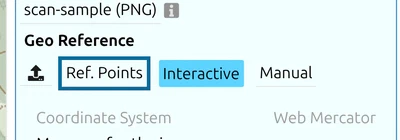
The Geo Reference row offers the ways to place an image. Interactive is selected. Click Ref. Points: you mark the same three places on the image and on the map, and map.army stretches, turns and moves the image to fit.
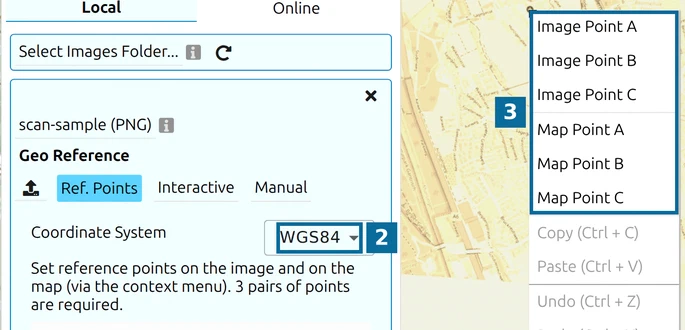
- 2 — Coordinate System: pick WGS84.
- 3 — the context menu: right-click a place on the image and choose Image Point A, then right-click the same place on the map and choose Map Point A.
- Drag the opacity slider above Add Layer to the left until you see the base map through the scan.
- Zoom out until the image and its surroundings fit next to the panel.
- Set three pairs, A, B and C, on places you can find on both: in the sample, the hospital’s red cross at the top left (A), the station square of Tägertschi at the top right (B) and the station square of Münsingen in the centre (C). Spread the points out and do not put them in a line.
- When all three pairs are set, Add Layer turns green. Click it.
Step 3: Check the fit and tone it down
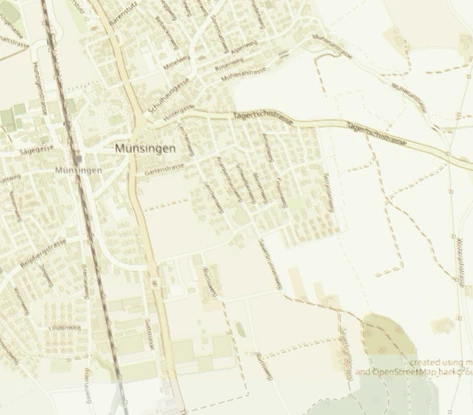
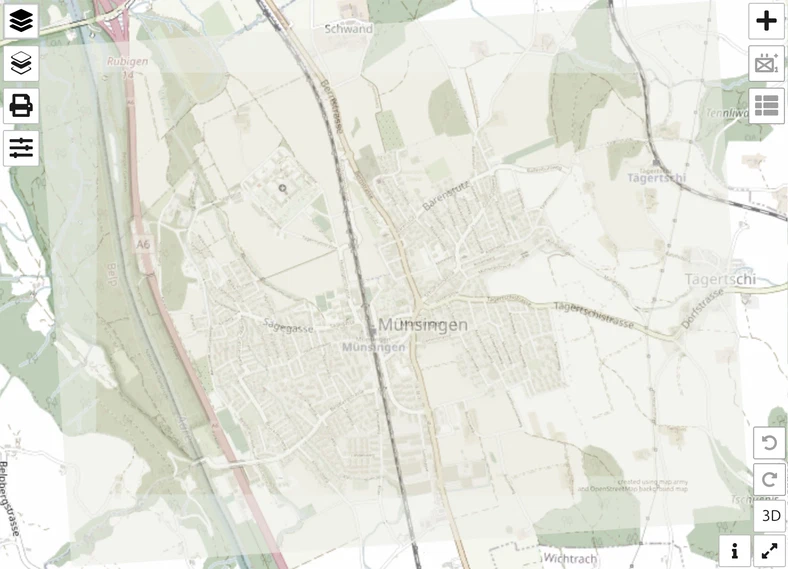
The scan now lies straight on the map. Look at roads and rivers at the edges: if they run on beside the image without a step, the fit is good. If not, remove the layer and set the points again, further apart.
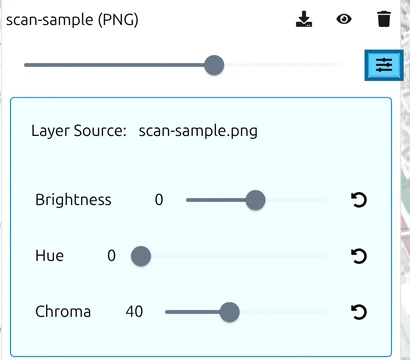
A strong picture under the overlay makes the symbols hard to read. In the image layer’s row, set the opacity slider to about 60, then click Settings (the sliders icon):
- Brightness, from -100 to 100, makes the image lighter or darker.
- Hue, from 0 to 360, shifts its colours.
- Chroma, from 100 down to 0, takes the colour out. Set it to 40.
Step 4: Save the placement and reuse it
Click the download button in the image layer’s row, Save placement of image overlay (download as file for reuse). It saves scan-sample.png.json, which holds the position and the coordinate system. Keep it next to the image.
Next time, load the image as in Step 1, click the upload button in the Geo Reference row and pick the .json. The scan lands in place with no points to set.
.json beside each image on its own. Removing such a layer also deletes the image and its .json from that folder.Step 5: Load an image that comes with a world file
- Load
export-sample.pngas in Step 1. - Click the upload button, Load image geo-reference from a file, and pick
export-sample.pgw. The mode switches to From File.
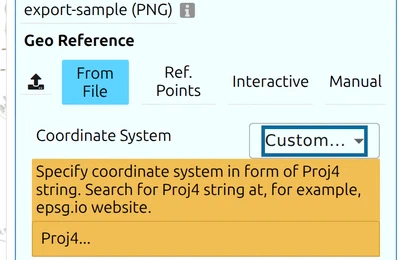
- A world file holds numbers but no coordinate system, so map.army asks for one: the field shows Custom… with a hint. World files that map.army exports are in degrees, so pick WGS84. For a file from your GIS, ask whoever made it, or look it up by its EPSG code on epsg.io.
- Click Add Layer.
Next tutorial
Continue with Turn a GPX track into a march route, or make your own world file with Print an overlay. Every control is described in Image layers.
Last updated: