On this page
Exchange Overlays with C2 Systems through NVG
Tutorial 16 of 17 · Expert · 20 min
Send your overlay to a command-and-control system as NVG, take the other side’s overlay in, and make sure nothing was lost or misplaced on the way.
NVG (NATO Vector Graphics, ADatP-4778) is the XML format NATO C2 systems use to exchange tactical overlays. map.army reads and writes it in the free hosted app. Inside map.army you keep working in MilX® — NVG is only the envelope for the trip.
You need
The overlay you want to send, saved as a MilX layer — for example the terrain analysis. To test the way back, an NVG file from the receiving system or from a partner. Ask the receiving side two things before you start: which NVG version it reads, and which classification and releasability it expects. Plan 20 minutes.
Step 1: Prepare the overlay for the trip
NVG carries less than MilX. Check the layer before you export it:
- Standard symbols only. NVG carries MIL-STD-2525C codes. A symbol from the Extended work mode is replaced by its nearest standard symbol on export.
- No pins, no texts. Generic Graphics Pins and Texts are not exported at all, and curved (Bezier) lines and areas arrive as an orange rectangle at the receiver. Replace them with standard graphics, or put their content into the T field of a graphic that travels.
- One layer per topic. Each layer becomes a group in the NVG file, named after the layer, so the receiver can switch them separately.
- Keep your master. Save the layer as
.milxlyzfirst — MilX keeps everything NVG drops.
Step 2: Export the NVG file
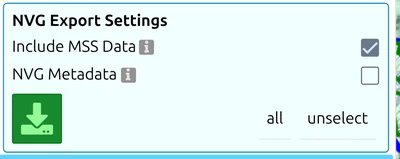
- Open Layers, then the Layer-Manager, and click the globe on the layer group — tooltip Export/Import in other formats.
- Choose the NVG tab with the downward arrow (export).
- Leave Include MSS Data on. It adds the full MSS® description as NVG Extended Data: a C2 system ignores it, but a second map.army gets the overlay back complete.
- Tick the layers to send. Do not download yet — set the metadata first. map.army always writes NVG 2.0.2.
Step 3: Set title, classification and releasability
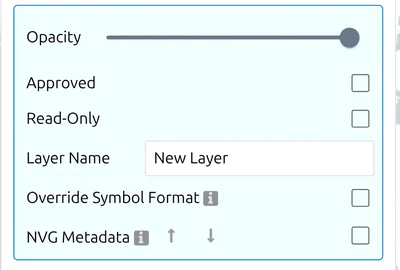
- Before downloading, switch on NVG Metadata in the export panel and enter the document Title.
- In the Confidentiality Label, fill in Policy, Classification and Releasability. Write releasability as ISO 3166 three-letter country codes —
CHE DEU FRA— not as prose: text the app cannot match is flagged and does not travel. - Need a different label for one layer? Set it in that layer’s own Settings under NVG Metadata.
- Click the green download button.
Creator, publisher, identifier and creation date are stamped by map.army; you cannot and need not type them.
Step 4: Import an NVG overlay
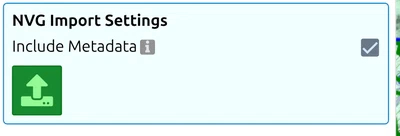
- In the same panel, choose the NVG tab with the upward arrow (import).
- Decide on Include Metadata — it carries the file’s own metadata into the new layers.
- Click the green load button. Nothing opens until you do: NVG waits for your metadata decision.
- The file arrives as one layer per group. Objects outside any group land in a layer called NVG Layer — rename it at once.
Step 5: Check what arrived
An NVG import can look complete and still be wrong. Before you work with it:
- Read every warning. Symbols in other schemes (
app6a:,2525b:,app06d:) are left out (NVG symbol ‘…’ is ignored); unknown codes are replaced by the closest standard symbol. Count the symbols against what the sender says they sent. - Check the position. map.army reads coordinates as WGS84 longitude and latitude. A file with projected metres loads without any error — and lands in the wrong place. Compare one known point.
- Check the version. Files older than NVG 2.0.0 are refused with a message.
Then work on the overlay as on any MilX layer, and save it as .milxlyz.
Next tutorial
Continue with Embed in a web page to show your overlays on your own site. Reference: NVG Import and Export and NVG Interoperability: What Survives the Exchange.
Last updated: