On this page
MGRS Map: Read and Report a Grid Reference
Tutorial 5 of 17 · Beginner · 10 min
Show the MGRS grid on the map, read a position as a grid reference such as 32TLT 81602 00383, copy it for a report, and find a reference that someone sends you.
You need
map.army open in a current desktop browser. No account and no prior knowledge are needed. Plan about 10 minutes.
MGRS (Military Grid Reference System) is the NATO way to give a position as one short string of letters and digits instead of latitude and longitude. The example in this tutorial is the Federal Palace in Bern, Switzerland, at 32TLT 81602 00383.
Step 1: Switch the coordinate grid to MGRS
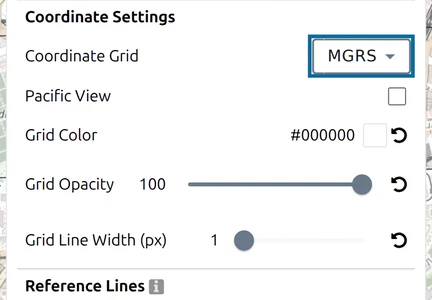
- Click Options in the toolbar on the left.
- Under Map Settings, scroll to Coordinate Settings.
- Set Coordinate Grid to MGRS.
The grid is drawn on the map at once. The same choice also sets the format of every coordinate the app shows, so all positions in the next steps appear as MGRS references.
Step 2: Turn on the cursor coordinate and the coordinate search
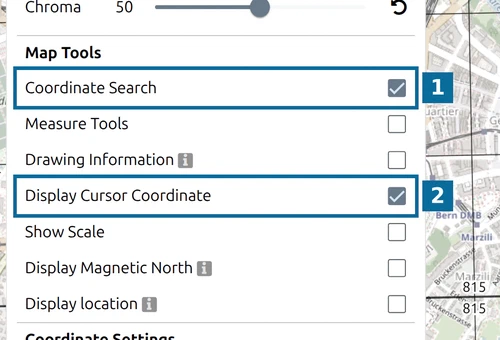
In the same panel, under Map Tools, tick:
- 1 — Coordinate Search: adds a search field to the map, used in step 6.
- 2 — Display Cursor Coordinate: shows the reference under the mouse pointer in the bottom-left corner of the map.
Close the Options panel.
Step 3: Read the grid from zone to 100 km square
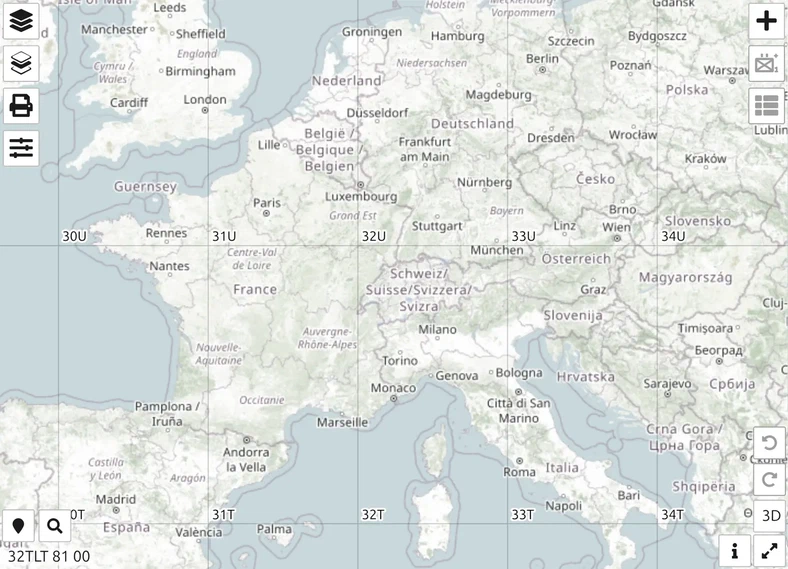
Zoom out until you see Europe. The map is divided into grid zones, each labelled with a number and a letter, such as 32T: zone 32 is a 6° strip of longitude, band T an 8° strip of latitude. This grid zone designator is the first part of every reference.
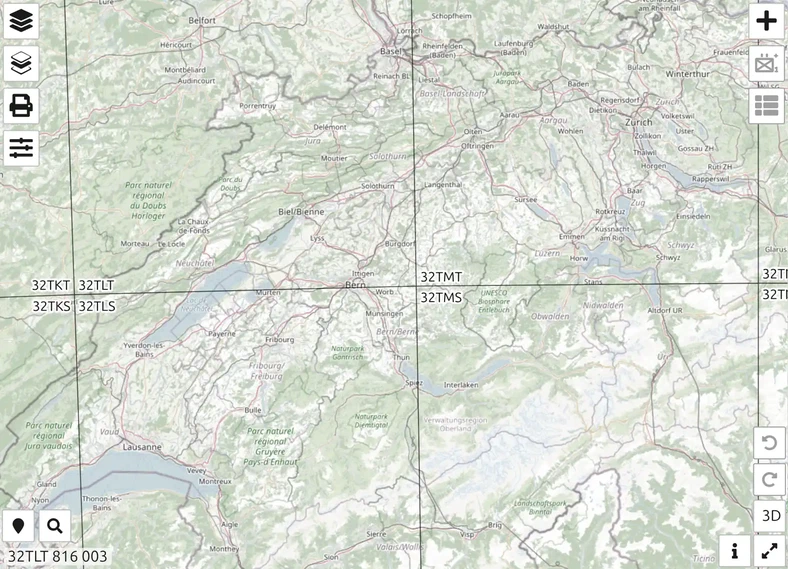
Zoom in towards Bern. Each zone splits into 100 km squares, each with two letters. Bern lies in square LT, so its references start with 32TLT.
Step 4: Read a grid reference to 10 digits
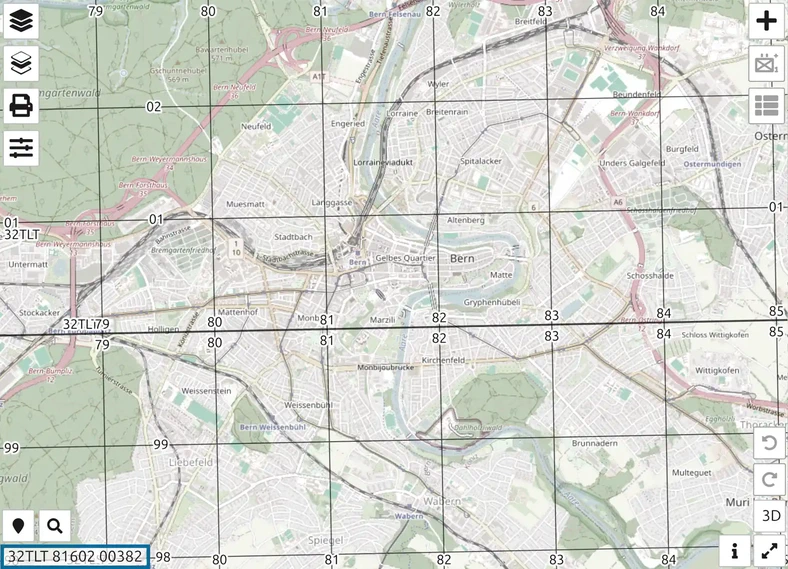
Zoom in until the km lines appear and point at the Federal Palace. The bottom-left corner shows 32TLT 81602 00382:
- 81602 is the easting: the distance east of the square’s west edge, in metres.
- 00382 is the northing: the distance north of the square’s south edge.
Read right first, then up. Both halves always have the same number of digits, and the more digits, the smaller the square the reference names:
| Digits | Example | Square |
|---|---|---|
| 4 | 32TLT 81 00 | 1 km |
| 6 | 32TLT 816 003 | 100 m |
| 8 | 32TLT 8160 0038 | 10 m |
| 10 | 32TLT 81602 00382 | 1 m |
The app cuts digits off rather than rounding, so a short reference always names the south-west corner of its square. The cursor reference shows fewer digits when you zoom out. The coordinate grid page explains how a reference is built.
Step 5: Copy the reference of a point
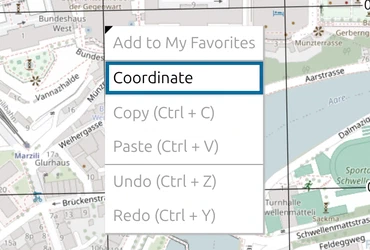
- Right-click the point on the map and choose Coordinate.
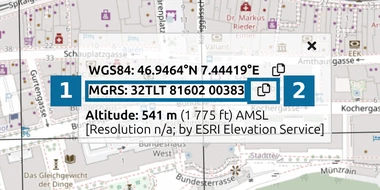
- A card opens above the point. It shows the position in WGS84 (latitude and longitude), as an MGRS reference and as altitude.
- 1 — the MGRS reference, here 32TLT 81602 00383.
- 2 — Copy: puts the reference on the clipboard, ready to paste into a report or a message.
The card gives the full 10 digits. If the reference differs by a metre from the cursor reference, that is just the mouse sitting on a neighbouring metre.
Step 6: Find a reference someone sends you
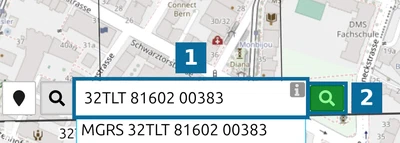
- Click the magnifier button at the bottom left of the map, Coordinates search on map.
- Type the reference, for example 32TLT 81602 00383 (marked 1). Spaces and lower case do not matter; the field shows below what it understood.
- Click the green Search button (marked 2). It appears only once the input is a valid reference.
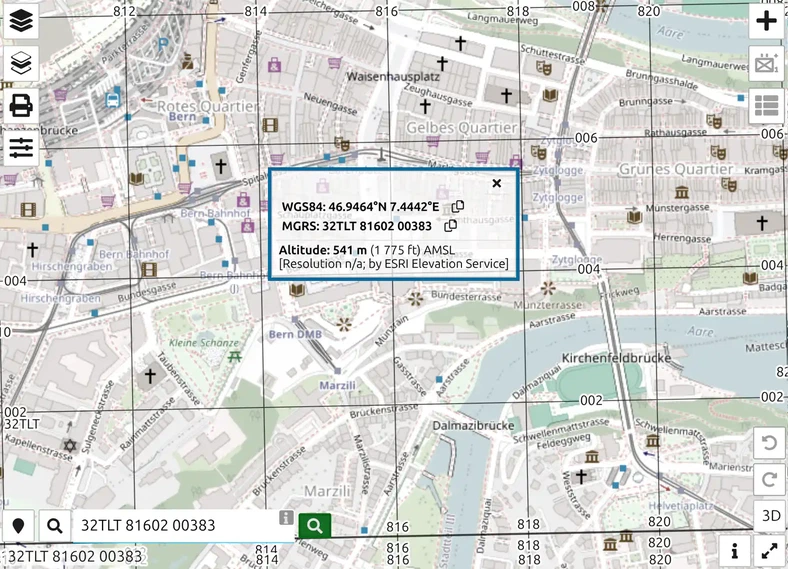
The map centres on the point and opens the same coordinate card. The zoom stays as it was, so zoom in to see the place.
You can now give any position on the map as an MGRS reference and find one you receive. The same search also accepts latitude and longitude and other grids; see coordinate search.
Next tutorial
Continue with Map the D-Day landings. For every grid the app offers, see the coordinate grid reference and the Map Tools settings.
Last updated: