On this page
War Map Maker: Draw Front Lines, Attack Arrows and Units
Tutorial 1 of 17 · Beginner · 20 min
Make a war map in the browser: place friendly and hostile units, draw the front line and attack arrows, label the units, then export the map as an image and share it with a link.
You need
map.army open in a current desktop browser. No installation, no account and no prior knowledge of military symbols are needed. Plan about 20 minutes.
The map uses the NATO military symbols of MIL-STD-2525C, the standard armed forces use for situation maps: blue rectangles for friendly units, red diamonds for hostile ones, and lines and arrows (tactical graphics) for front lines and attacks.
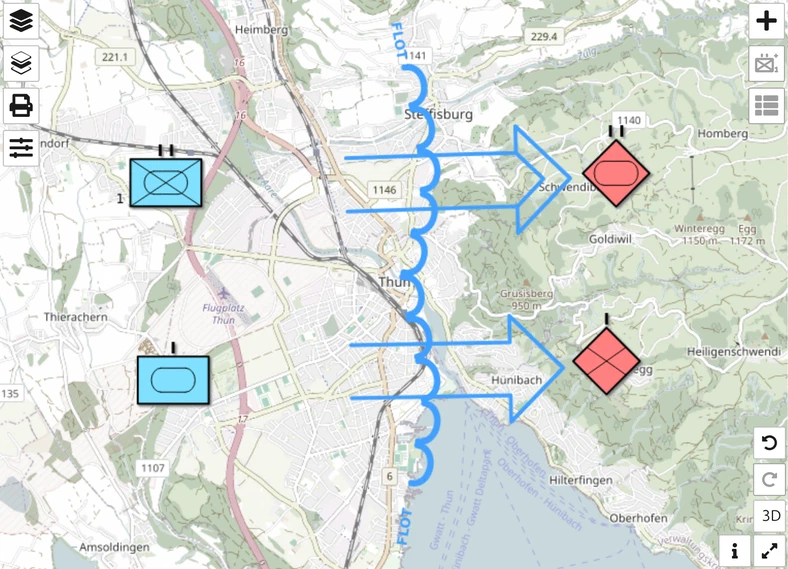
Two friendly units on the left, two hostile units on the right, the front line between them and two attacks across it. The example is set near Thun, Switzerland, but any place works.
Step 1: Create a layer for the war map
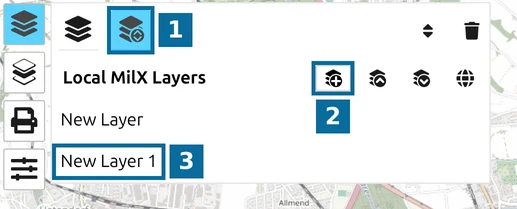
Everything you draw goes onto a MilX layer, an overlay of military symbols that you can show, hide, save and share on its own.
- Click Layers in the toolbar on the left.
- 1 — Open Layer-Manager.
- 2 — New MilX Layer: the layer New Layer 1 appears at once.
- 3 — click its name, type War map and press Enter.
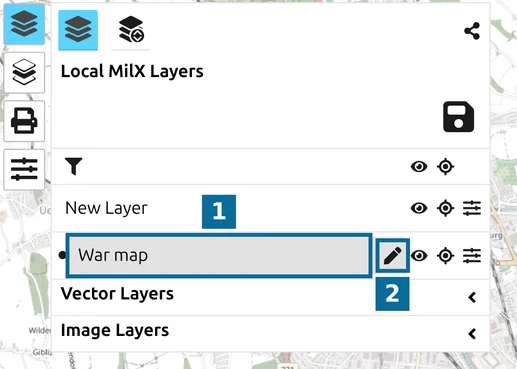
- Close the Layer-Manager with the same button and click the name of the new layer in the list.
- 1 — the layer War map.
- 2 — the pencil icon: this is the active layer. New symbols go onto it, and you can only add, edit, move or delete symbols on an active layer.
Step 2: Place the units
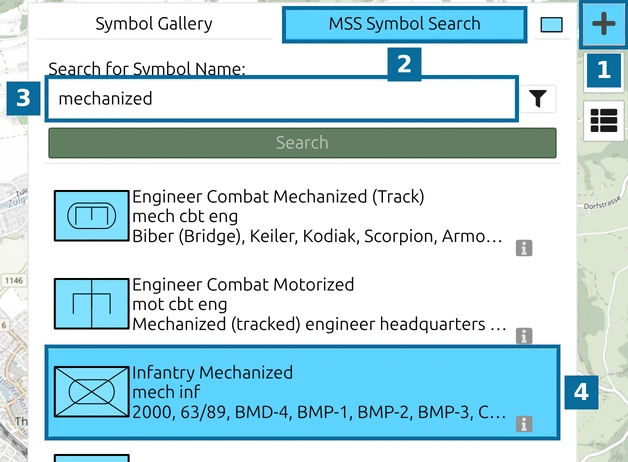
- Open the symbol panel and search for the unit:
- 1 — Add New Symbol (the + button).
- 2 — the MSS Symbol Search tab. The panel always opens on Symbol Gallery, which lists the same symbols by category.
- 3 — type mechanized and click Search.
- 4 — click Infantry Mechanized.
- Click + again to close the panel, then click the map where the unit stands. Each further click places another one; click + again to stop.
- Do the same for an Armor Track unit next to it.
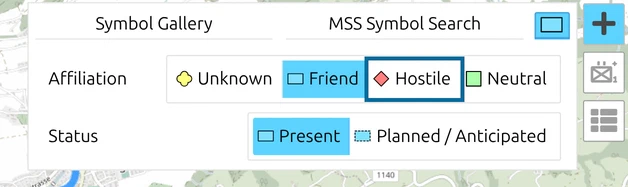
For the enemy, open the third tab of the panel, the coloured square, and set Affiliation to Hostile before you pick the symbol. The setting stays until you change it, so switch back to Friend afterwards. The affiliation is which side a unit belongs to, and it sets the frame shape and colour. Place a hostile Armor Track and a hostile Infantry unit east of your own.
Step 3: Label the units
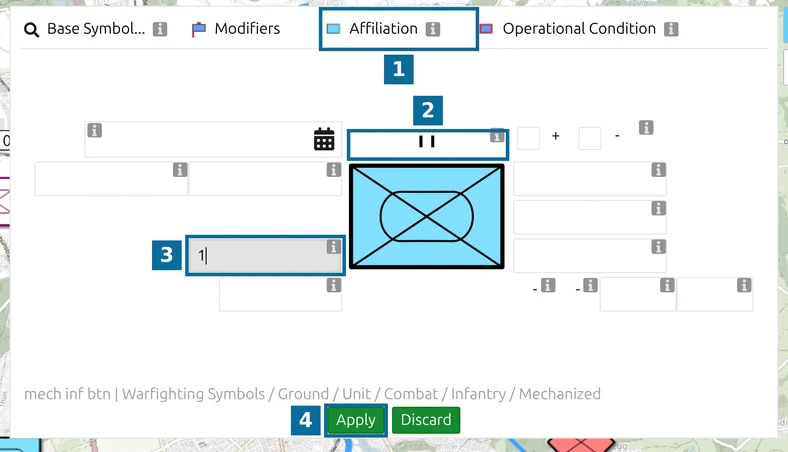
Click a unit on the map to select it, then click Symbol Editor in the toolbar.
- 1 — Affiliation tab: change the side of a unit you have already placed.
- 2 — the echelon, the size of the unit: pick II for a battalion or I for a company.
- 3 — the unit’s designation, for example 1. The fields around the symbol have no visible labels; click the info icon beside one to see its name, here Designation of unit / subunit [Modifier T].
- 4 — Apply. It turns green only after a change; Discard throws the changes away.
Clicking another symbol while the editor is open switches the editor to it. Close the editor with its toolbar button before you go on, since it covers half of the map.
Step 4: Draw the front line and the attack arrows
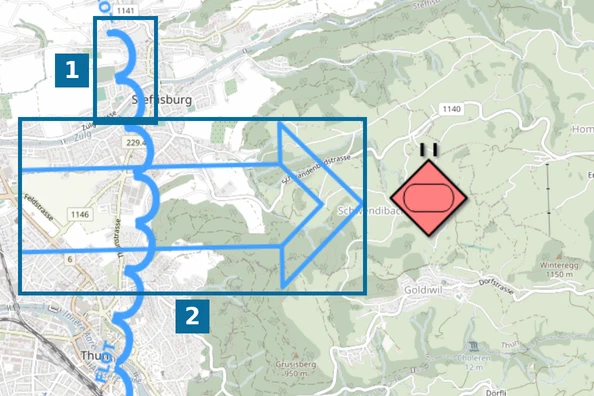
- Click +, search for flot and pick Forward Line of Own Troops (FLOT), the front line of your own forces.
- Click the map once per point along the front. Keep the pointer on the last point and press Space to finish; a right-click also finishes the line.
- 1 — the front line. Its half circles face the enemy. If they come out on your own side, delete the line and draw it in the opposite direction.
- Search for main attack and pick the first Main Attack result, the wide arrow. Click the tip first, on the enemy side, then the tail behind your own units, and press Space without moving the pointer.
- 2 — the main attack.
- Draw a second arrow the same way with Supporting Attack.
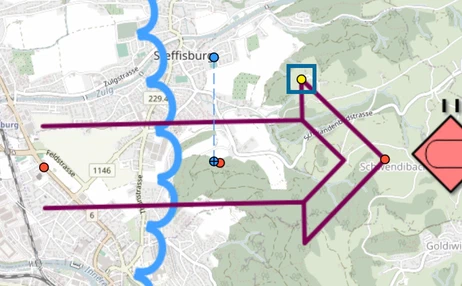
The arrow’s width follows its length. To change it, click the arrow and drag the yellow width handle. The other handles move the tip and the tail.
Step 5: Check a unit’s position
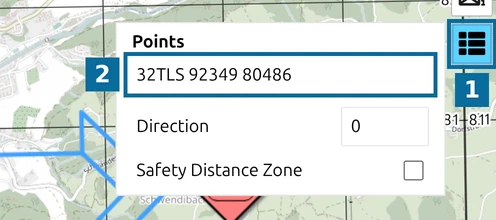
Select a unit and click Point List in the toolbar on the right.
- 1 — Point List.
- 2 — the unit’s position under Points, here as the MGRS grid reference 32TLS 92349 80486.
The format follows the coordinate grid chosen in the Options; Read an MGRS grid reference shows how to switch it. You can type a new position into the field to move the unit exactly; an Apply Changes button appears as soon as you edit it.
Step 6: Export an image and share a link
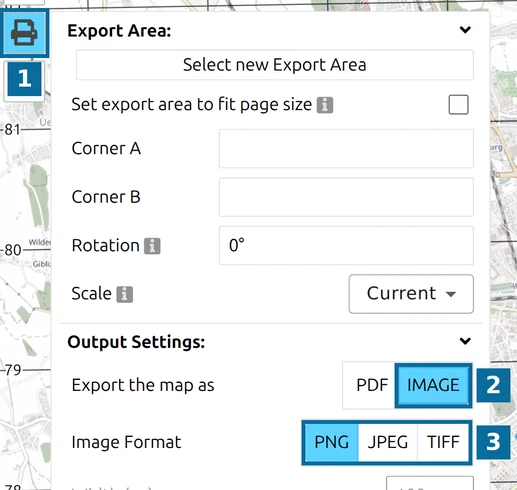
- 1 — the printer button, Print map or Export to PDF.
- 2 — set Export the map as to IMAGE.
- 3 — choose PNG, JPEG or TIFF.
Scroll down and click Export. Without a chosen export area, the app exports what you see on the screen. The image goes to your Downloads folder.
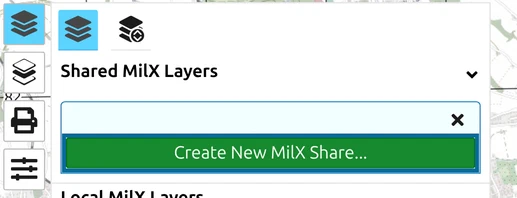
Click Layers, then the share icon (Share Military Map), and Create New MilX Share…. This uploads your layers to map.army and moves them into the new share. The share then offers a link for each kind of access, from read only to editing, plus the code to embed the map in a web page.
Share a map shows the links in a video, and Embed a military map in a web page shows the embed code.
Next tutorial
Continue with Add pins and text boxes. For a full situation with many units, see Map the D-Day landings. All symbol fields are explained in the Symbol Editor reference.
Last updated: