On this page
Symbol Editor — Edit MIL-STD-2525 Attributes in map.army
Editor to modify Attributes and Modifiers of Military Symbol and tactical Graphics in map.army
Overview
 After you have selected military symbols from the gallery and placed them on the map, you can edit and add to a marked symbol in the MSS Symbol Editor.
The editor opens on a single Edit tab, where you customise the modifiers and attributes of the base symbol. Everything on this page happens there.
Edit Tab
Edit is the main tab, it provides all the functions to create and customise the Military Symbols. This includes the following function groups:
1. Modifiers
The modifiers supported by a Symbol are structured in a Drop-Down Menu. The modifiers can be selected or deselected by a single click. The MSS Symbol Editor supports the modifiers according to the definition in the MIL-STD-2525 standard. This includes the position, availability and length.
Which modifiers you see depends on the Work Mode: International offers the MIL-STD-2525 set, Extended adds country-specific modifiers on top. Change it under General Options.
There is no robotic or unmanned (UGV/UAS) modifier. That indicator belongs to the later APP-6D and APP-6E editions, and map.army draws MIL-STD-2525C, so no combination of modifiers produces it. If you need unmanned assets to stand out on the map, the usual answer is to mark them by colour instead: the Custom Color modifier recolours the symbol itself, and Colored Corners tints the corners of its frame, leaving the standard icon intact. Neither is doctrine — they are a visual convention you define for your own situation, so say what you used in the legend or in an order.
2. Affiliation
The Affiliations a symbol supports are listed in a separate drop-down menu. The Affiliation can be selected by a single click in the Menu:
3. Operational Condition
The available Operational Condition (Status) of a Symbol are structured in a Drop-Down Menu. It can be selected by a single click in the Menu:
4. Text Modifier
The Text-Modifiers available around the symbol or tactical graphic can be edited directly within the Editor. You can find more information on the Modifier by pressing on the `i` – Button:
The character limit on each text modifier is not ours — it is set by MIL-STD-2525, and MSS follows that definition along with the Multilateral Interoperability Programme (MIP) and JC3IEDM. So a field that stops accepting characters has reached the standard’s limit, not a limit of the editor.
5. Icon Extension Modifier
In Extended Work Mode, the Symbol Editor exposes additional Icon Extension Modifiers — small overlay icons that attach to a symbol to express subordinate role or amplifying information without breaking standards compatibility.
Up to two Icon Extension Modifiers can be assigned per symbol. They are positioned around the central icon according to the MIL-STD-2525 modifier layout and are preserved in MilX exports (compatible with MIL-STD-2525 / JC3IEDM consumers).
To access them: switch Options → General → Work Mode to Extended, then open the Symbol Editor on a placed symbol — the Icon Extension Modifier menu appears alongside the standard modifiers.
6. Base Symbol
Everything above changes what is around the symbol. Base Symbol… changes the symbol itself — you keep the graphic where it is, with its modifiers, and swap which military symbol it draws.
It is the leftmost control in the editor’s row, marked with a magnifier and sitting ahead of Affiliation and Operational Condition:

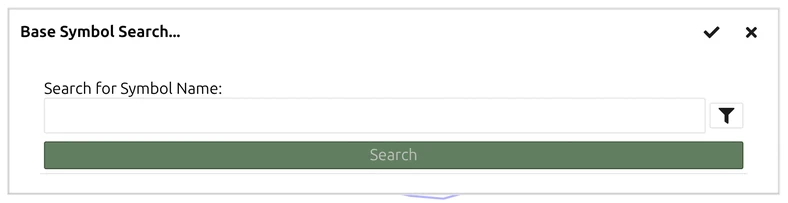
Clicking it opens Base Symbol Search…, where you find the replacement by typing part of its name:
Use it when a symbol was placed in a hurry, when a unit turns out to be something else, or when a batch of graphics arrived from an import carrying a generic symbol — see Import Overlays.
For several graphics at once, copy a symbol that is already right, select the graphics on the map, and paste: every selected graphic takes the copied base symbol in one step.