On this page
Uninstall the map.army Progressive Web App (PWA)
This article walks through removing the map.army Progressive Web App on every platform it supports. The uninstall step depends on your device — pick the matching section below. Saved .milxlyz files on disk are never touched by the uninstall.
Windows
Follow these steps to uninstall the web application on Windows:
- Click the search icon and type uninstall.
- Open Add or remove programs.
- Type Military Map in the search box.
- Click Military Map, then click Uninstall.
- Confirm by clicking Uninstall again.
Mac
Follow these steps to uninstall the web application on Mac:
- Open the installed Military Map app.
- Click the three dots menu in the upper-right corner of the app window.
- Click Remove in the popup.
Android
Touch and hold the Military Map icon on the home screen, then drag it to Uninstall at the top of the screen or tap Remove from device in the popup menu. Alternatively, open Settings → Apps → Military Map → Uninstall.
Chrome OS
Right-click the Military Map icon in the Chrome OS Launcher (or two-finger click on a trackpad) and choose Uninstall. Confirm in the dialog. The .milxlyz file association is removed from the Files app as part of the uninstall.
iOS and iPadOS
Touch and hold the Military Map icon on the home screen, tap Remove App in the menu that appears, then tap Delete App to confirm. The icon and the PWA’s cached data are removed; any saved layer files in Files / iCloud Drive are not affected.
Linux
In Chrome, Edge, or Brave on a supported 64-bit distribution: open the browser menu inside the running Military Map PWA window and choose Uninstall Military Map — or visit chrome://apps, right-click the Military Map icon, and choose Remove from Chrome. Confirm in the dialog. The .desktop entry and MIME registrations are removed from the user’s ~/.local/share profile.
What gets removed
On the desktop platforms (Windows, Mac, Linux, Chrome OS), uninstalling the PWA removes the application shortcut, the dedicated window mode, and the .milxlyz file association. On mobile (Android, iOS / iPadOS), where the file association is not registered, the uninstall removes the home-screen icon and the cached app data only. Any layers that were stored only inside the running app session — for example unsaved sketches on the canvas — are lost when the cache is cleared. Exported .milxlyz files saved on your disk or in cloud storage are not affected by the uninstall and can be reloaded after a fresh install.
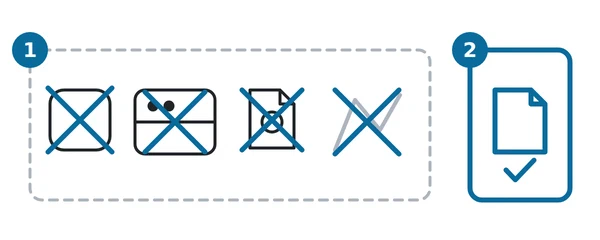
In the diagram: 1 what is removed or lost: the shortcut, the window mode, the file association and unsaved sketches; 2 what is kept: your exported .milxlyz files.
Re-installing later
To get the PWA back, open map.army in a supported browser and follow ‘Install’ again. Re-installation does not require an account or licence — the application is fetched directly from the live website.
Last updated: