On this page
Install map.army as a Progressive Web App (PWA)
Install map.army as a Progressive Web App so it runs in its own window, gets a desktop or home-screen icon, and registers the .milxlyz file association on desktop. Installing does not make it an offline tool — read What installing does not give you below before you rely on it away from a connection.
Progressive Web Application
A Progressive Web App (PWA) is a modern web application that your browser installs onto your operating system the same way a native app does — you get a desktop icon and a windowed launch with no browser chrome. Under the hood it is still web technology (HTML, CSS, JavaScript, WebGL), delivered straight from the live map.army site, so new versions reach you straight from the site — no app-store review, no manual installer, no account required.
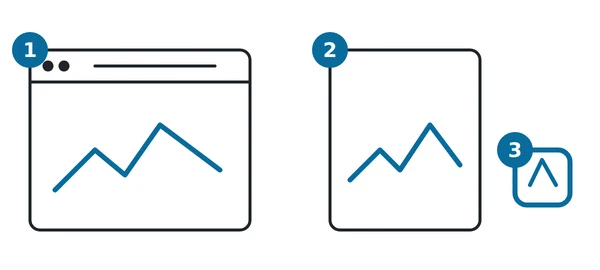
In the diagram: 1 a normal browser window; 2 the installed app in its own window without tabs or address bar; 3 its desktop or home-screen icon.
The installed map.army PWA gives you:
- A dedicated window with no browser tabs, address bar, or bookmarks bar — more screen for the map.
- A desktop or home-screen icon that launches directly into the app.
.milxlyzfile association on Windows, Mac, Linux, and Chrome OS — double-click a saved layer to open it in map.army (see ‘File Association’).- The application starts without a connection once its own files have been cached — you get the app, not a browser error.
- Updates you are asked about — map.army checks for a new version when it starts and then about once an hour. When one is ready it offers Reload or Later; choose Later and you keep running the version you have until you reload. See Update the application.
A PWA install is reversible at any time — see ‘Uninstall’. For minimum OS and browser versions, see ‘Compatibility’.
What installing does not give you
Installing map.army does not turn it into an offline application. Without a connection it does not start at all:
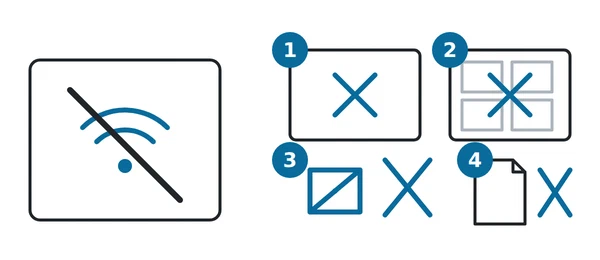
| Without a connection | Works? |
|---|---|
| The application starts (1) | No — the browser shows a cached offline notice instead, and no application code runs |
| The background map draws (2) | No — map tiles are fetched as you pan and zoom, and none are stored for later |
| Placing a military symbol, or the Symbol Gallery and Symbol Editor (3) | No — every symbol image is drawn by the MSS service |
Opening or saving a .milxlyz file (4) | No — MilX files are read and written by the MilX service |
The offline notice itself is stored at install time, so you will normally see it rather than a browser error. If even that has not been stored yet, the browser shows a short “service unavailable” message instead; the page retries by itself every 30 seconds once a connection returns.
Install
The install step depends on which platform you are on. Pick the one that matches your device.
Windows
In Chrome, Edge, or Brave on Windows 11 or later:
- Open map.army in a supported browser — Chrome or Edge recommended.
- Click the App available. Install Military Map icon in the address bar (right-hand side).
- Confirm the install dialog.
The app appears in the Start Menu under Military Map and can be pinned to the taskbar.
Mac
In Chrome, Edge, or Brave on macOS Catalina 10.15 or later:
- Open map.army in a supported browser — Chrome or Edge recommended.
- Click the Install Military Map icon in the address bar.
- Click the Install button in the dialog.
The app appears in Applications and can be added to the Dock.
Android
In Chrome, Edge, or Brave on Android 8.0 Oreo or later:
- Open map.army in a supported browser — Chrome or Edge recommended.
- Tap the Install app prompt that appears below the address bar — or open the browser menu and choose Install app / Add to Home Screen.
- Confirm the install dialog.
The icon appears on the home screen and launches in its own window. Android does not register a .milxlyz file association — open saved layers through the in-app Open dialog (see ‘File Association’).
Chrome OS
In Chrome on Chrome OS 86 or later:
- Open map.army in Chrome.
- Click the Install Military Map icon in the address bar — or open the Chrome menu and choose Save and share → Install Military Map.
- Confirm the install dialog.
The app appears in the Chrome OS Launcher and can be pinned to the shelf. The Files app registers the .milxlyz association — double-click a saved layer to open it directly in map.army.
iOS and iPadOS
On iOS or iPadOS 15 or later:
- Open map.army in a supported browser — Chrome recommended (Safari can also be used).
- Tap the Share button (the square with an upward arrow).
- Scroll the share sheet and tap Add to Home Screen.
- Confirm the name and tap Add.
The icon appears on the home screen. Like Android, iOS does not register a .milxlyz file association — open saved layers through the in-app Open dialog instead. All browsers on iOS use Apple’s WebKit engine and share the same Add-to-Home-Screen flow through the iOS share sheet.
Linux
In Chrome, Edge, or Brave on a supported 64-bit distribution (Ubuntu 18.04+, Debian 10+, openSUSE 15.2+, or Fedora 32+):
- Open map.army in a supported browser — Chrome or Edge recommended.
- Click the install icon in the address bar — or open the browser menu and choose Install Military Map.
- Confirm the install dialog.
The app registers as a .desktop entry and launches from the application menu.
Last updated: