On this page
MilX File Association: Open .milxlyz Files Directly
MilX (*.milxlyz) is the default file format used in map.army.
Start by double click
Once map.army is installed as a Progressive Web App (see ‘Install’), the desktop platforms — Windows, Mac, Linux, and Chrome OS — register MilX files with the operating system. A double-click on any .milxlyz or .milxly file in your file manager launches map.army directly and loads the layer onto the map — no need to open the browser first, navigate to the site, and import the file manually.
On mobile (Android, iOS / iPadOS) the operating system does not expose a file-handler API to PWAs — open saved layers through the in-app Import Layer dialog instead.
Windows
After installing the progressive web application, the operating system recognises .milxlyz and .milxly files. Double-clicking a file in Explorer launches the app and loads the layer onto the map.
Mac
After installing the progressive web application, the operating system recognises .milxlyz and .milxly files. Double-clicking a file in Finder launches the app and loads the layer onto the map.
Android
Android PWAs do not register a .milxlyz file association in the system’s Open with registry. To open a saved layer on Android, launch map.army from the home-screen icon and use the in-app Load MilX action instead — see Import Overlays.
Chrome OS
After installing the progressive web application on Chrome OS, the Files app recognises .milxlyz and .milxly files. Double-clicking a saved layer in the Files app launches map.army and loads the layer onto the map.
iOS and iPadOS
iOS and iPadOS PWAs installed via Add to Home Screen do not register a .milxlyz file association — Apple does not expose the file-handler API to web apps. To open a saved layer on iOS, launch map.army from the home-screen icon and use the in-app Load MilX action instead — see Import Overlays.
Linux
On supported 64-bit distributions (Ubuntu 18.04+, Debian 10+, openSUSE 15.2+, Fedora 32+), the PWA install registers a MIME-type association for .milxlyz and .milxly and an Open With entry. Double-clicking a saved layer in the file manager (Files / Nautilus, Dolphin, Thunar, …) launches the app and loads the layer onto the map.
File format
.milxlyz is the zip-compressed variant and .milxly is the uncompressed XML variant of the same MilX layer format. Both are handled identically by map.army — opened automatically when double-clicked on a desktop platform with the file association registered, or imported manually via the in-app dialog on mobile or in any browser session without the PWA installed. See Import Overlays for the manual import flow.
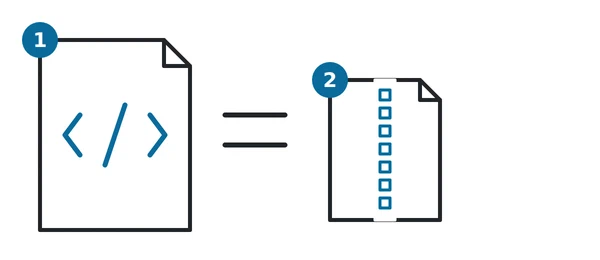
In the diagram: 1 .milxly, uncompressed XML; 2 .milxlyz, zip-compressed; the equals sign means the same content.
Sharing a file to map.army
File association works in one direction: you open a .milxlyz and it launches map.army. The installed app also registers as a share target, which is the other direction — on an operating system that supports it, map.army appears in the system share sheet, so you can send a MilX file to it from a file manager, a mail client or a chat app instead of saving it first and opening it afterwards.
It accepts the same files as the file association — .milxly and .milxlyz — and opens them exactly as a double-click would.
Last updated: