On this page
Symbol Format Settings for 1-Point Symbols
This page covers the settings for 1-point symbols in the Symbol Format group of the Options in map.army. Line width, optimized colors and tactical graphics are described under Symbol Format.
In this area you can make settings for tactical signs.
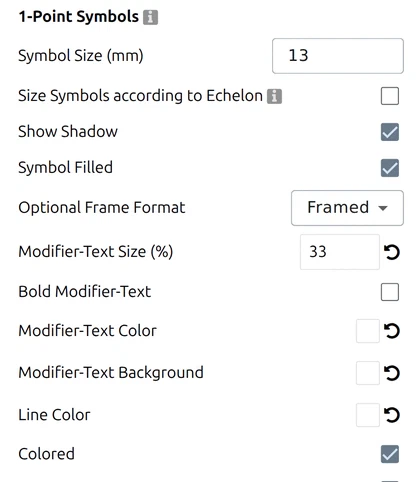
Size, shadow and frame
Symbol Size — The value sets the height of the symbol’s base frame. Its unit follows Distance Unit under Units of Measure: millimetres with the metric setting, inches with the imperial one. The field accepts any value from 0.1 to 99 and offers four presets — 10, 15, 20 and 25 mm, or 3/8, 1/2, 3/4 and 1 inch. On a tactical graphic it scales only the symbol elements embedded in it, never the geo-referenced geometry. The value is honoured at the output resolution of a print or export, so a 15 mm symbol prints at 15 mm.
Size Symbols according to Echelon — Sizes each symbol by its echelon — the unit level it represents. The app puts it plainly: “symbols are scaled depending on the unit size (Echelon). For example, the symbol of a platoon is smaller than that of a battalion.” Echelon is the military term for that level of command.
Show Shadow — If the flag is set, the base frame of the symbol casts a shadow.
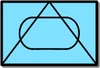 | 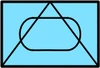 |
|---|---|
| Shadow | No Shadow |
Symbol Filled — If the flag is set, the basic frame of the symbol is filled out. If the ‘colored’ flag is set, the content is blue, otherwise white.
| 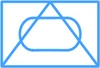 |
|---|---|
| Symbol Filled | Symbol not filled |
Optional Frame Format — For certain types of symbols (e.g. vehicles) the frame can be switched on or off here.
Modifier text
Modifier-Text Size (%) — Here you can change the text size of the modifiers around the symbol. The value corresponds to % of the height of the basic symbol. Default value is 33%; any value from 1% to 99% is accepted.
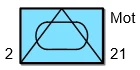 | 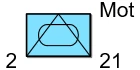 |
|---|---|
| Size 33% | Size 60% |
Bold Modifier-Text — If this flag is set, the modifier texts are shown as bold.
| 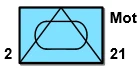 |
|---|---|
| Normal | Bold |
Modifier-Text Color — This dialog can be used to set the colour of the modifier texts. Standard is black. A colour typed into the field must be #rrggbb; leave the field empty for the default colour.
| 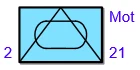 |
|---|---|
| Standard | Blue Text |
Modifier-Text Background — Puts a background behind the modifier text. Worth switching on over aerial imagery or a busy topographic map, where plain text on its own becomes unreadable.
Colour
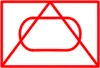
Line Color — This dialog is used to define the colors of the signature lines. A colour typed into the field must be #rrggbb; leave the field empty for the default colour.
|  |
|---|---|
| Standard | Red Linies |
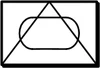
Colored — This checkbox determines whether the signature is displayed in color or black and white.
|  |
|---|---|
| Standard | Not colored |
Direction, scale and declutter

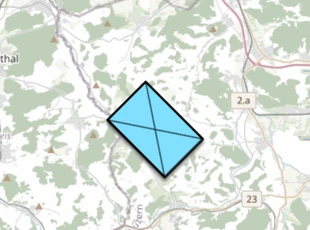
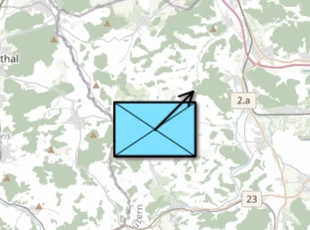
Rotatable Symbols — Decides how a symbol’s direction of movement (modifier Q) is drawn on the map. On by default.
 |  |
|---|---|
| On: the symbol is turned | Off: the MIL-STD-2525 arrow |
- On — the whole symbol is turned to point in its direction. No arrow is drawn.
- Off — the symbol is not turned; instead the standard MIL-STD-2525 direction-of-movement arrow is drawn out of it. Pick this when the frame has to stay readable, or when the picture must match the standard.
The setting applies to every 1-point symbol on the map at once — there is no per-symbol choice. Symbols that carry no direction look the same either way. How to give a symbol a direction: Symbol Editor → Direction of movement. In the 3D view this setting has no effect: symbols are never turned there and no arrow is drawn on them; the only direction cue is Indicate Direction below.
While Display location is active the control is greyed out and rotation is forced on; your own setting comes back when you switch Display location off. See Map tool settings.
Scale Symbols — Scales 1-point symbols with the map scale, so — in the app’s words — “zooming out reduces the size of the 1-point symbols for a better overview.” Leave it off when symbols must stay legible at every zoom level; switch it on when their size should mean something relative to the ground.
Decluster Symbols — Separates symbols that overlap or crowd each other, using offset lines back to their true positions — the app calls this “a better readability of the operational picture”. It changes how they are drawn, never the coordinates they hold, and those offset lines are the Reference Lines you can restyle under Coordinate settings.
Indicate Direction (3D view only) — While the 3D view is active, the three settings above are replaced in this slot by Indicate Direction, on by default: every 1-point symbol with a direction of movement gets a 3D arrow pointing that way. It is the only direction cue in 3D — neither rotation nor the flat arrow exists there. Details on 3D view → Indicate Direction.
Last updated: