On this page
Import Vector Layers: KML, GeoJSON and Shapefile
map.army reads KML, GPX, GeoJSON and shapefile data as vector layers. This page covers how to load them, convert them to MilX® layers and what is kept from the source.
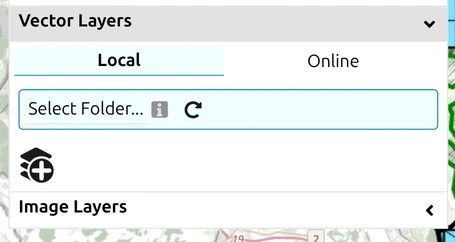
You can import vector graphics as layers and display them in the situation map. The panel has two tabs, and a layer belongs to one or the other:
- Local — files from your own machine.
- Online — a layer fetched from a URL. Only these travel with a shared project, because a share carries the address the layer came from rather than its content. See Share vector and image layers.
Supported formats
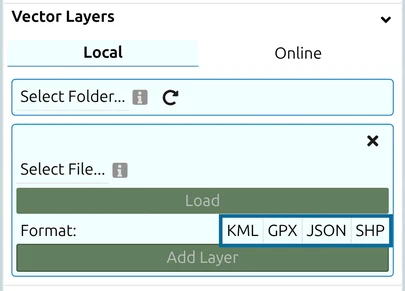
A Format row above the file picker offers four buttons — KML, GPX, JSON, SHP:
| Format | Extensions | What it is |
|---|---|---|
| KML | .kml | Keyhole Markup Language (e.g. from Google Earth) |
| GPX | .gpx | The GPS Exchange Format, for tracks, routes and waypoints |
| JSON | .json, .geojson | GeoJSON, the open format for geographic data — both extensions are the same format |
| SHP | .shp | Esri shapefile, the common GIS vector format |
Loading a file normally sets the format for you from its name. The one case where you have to set it yourself is a URL with no file extension — a download link like …/export?id=4711 tells map.army nothing, so pick the format after the load and before Add Layer. A format picked before the load is reset by it, and Add Layer stays unavailable until a format is set.
Three ways to load a layer
- A single file — Select File…, and choose it.
- A whole folder — Select Folder…, offered where your browser provides the file-system directory picker (today, Chrome and Edge on the desktop). This is how a layer comes back later: map.army writes a small settings file next to each layer file, recording its opacity, colour and visibility, and picks the folder up again at the next start. Only files that already have such a settings file are loaded — a folder of files map.army has never seen loads nothing, with no message.
- A URL — fill in URL and a Name. Your browser fetches it, which is why a server that does not permit cross-origin requests will fail here even though the address works in a browser tab.
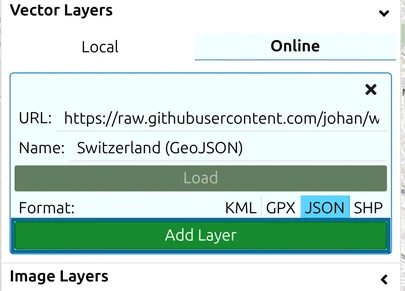
If a load fails, the message tells you which of the three went wrong: “Could not load the file … please check if the URL is correct. If the issue persists, check the CORS (Cross-Origin Resource Sharing) settings on your server” is the URL route; “Incorrect Format (.xyz)” means the extension is not one of the five above.
.kmz cannot be loaded directly — unzip it first. KMZ is a zipped KML, and the vector import reads the file as text, so it accepts .kml only. Rename or extract the archive to get the .kml inside it and load that. (Going the other way is different: an export to KML always writes a .kmz — see KML / KMZ Export.)A shapefile is read as the single .shp file
map.army reads the .shp on its own. A shapefile is really a set of files, and the two that are not read matter:
- The
.dbfholds the attributes, so feature names and properties do not come across. - The
.prjholds the projection, so coordinates are taken as WGS84 longitude and latitude.
A shapefile in a national projection therefore lands in the wrong place, with no error to tell you so. If your data is projected, convert it to WGS84 GeoJSON in your GIS before loading it — that also keeps the attributes.
Turn a vector layer into a MilX layer
A vector layer is a backdrop: you can see it and restyle it, but you cannot edit its features as military symbols. The Convert button on the layer’s row changes that — an icon-only button whose tooltip reads Convert the layer to MilX and add it to the project. It works for all four formats.
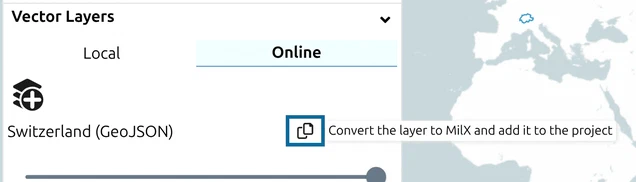
Each feature becomes one MSS® graphic, chosen by what the feature is: a point for a placemark or waypoint, a line for a polyline, route or track, an area for a polygon. For KML, line and area styling is carried across where the source declares it — line colour and width, fill colour and transparency — so a styled KML arrives looking much as it did. GPX routes and tracks each get their own fixed colour instead, since GPX has no standard colour of its own. GeoJSON and SHP features always arrive in the default dark grey.
What does not come across:
- The feature’s description — balloon text, popup content and the icon a KML names through an
href. Every converted feature carries a standard MSS symbol, not the source’s own icon. - Anything beyond 15 characters of the name. On a KML or GPX point, and on a GPX route or track, the feature name becomes the symbol’s text modifier, which MIL-STD-2525 limits, so “Bridge over the Aare, southern crossing” arrives truncated. Shorten names in the source file if they have to stay readable.
- The name of a KML line or area, and every name and property of a GeoJSON or SHP feature — those formats arrive as geometry only.
You end up with both layers. Converting creates a new MilX layer and leaves the vector layer exactly where it was, so the same features are drawn twice — once as the backdrop and once as symbols. Hide or remove the vector layer once you are happy with the conversion.
The resulting MilX layer is an ordinary editable layer: it accepts the full tactical-graphics editor and exports as .milxlyz.
The generic symbol the conversion assigns is not permanent. Select a converted graphic, open the MSS Symbol Editor, and use Base Symbol… in the modifier menu to search for the symbol it should actually be. To retag a batch, set one graphic correctly, copy it, select the rest on the map and paste — they all take that symbol at once. Converted points swap freely; a converted line or area can only become another free-form line or area, and the app refuses anything incompatible rather than changing it silently. See Symbol Editor.
KML import notes
KML files of moderate size import reliably. Two separate limits apply to large inputs:
- Convert is limited to 2 MB. If the layer’s file is larger than that, Convert does nothing except show the message The layer is larger than 2 MB and cannot be converted to MilX. on the layer row. The check uses the size of the file on disk (2 MB as Windows shows it). Showing the layer as a backdrop has no such limit. To convert it, split the file into smaller ones, or remove features you do not need, and load the parts as separate layers.
- Very large inputs may also exceed the per-symbol point limits of a single MilX graphic. Splitting the source into smaller files helps here too.
What you can change after a vector import
An imported vector layer is not fixed in place. Its row in the Layers panel offers:
| Control | What it does |
|---|---|
| Opacity | A slider, for fading the layer back so your military symbols stay readable on top of it |
| Convert (icon only) | Turns the vector layer into a MilX layer, so its features become editable military symbols — see above |
| Show / hide | The eye, for taking the layer off the map without removing it |
| Remove | The bin, tooltip Remove the layer |
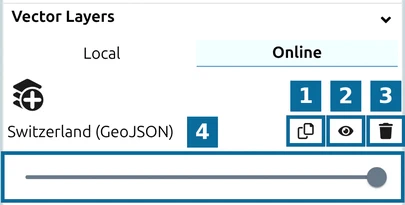
In the image: 1 Convert, 2 Show / hide, 3 Remove, 4 Opacity.
Colour options (Brightness, Hue, Chroma), a Layer Source readout and Download exist only on image layers; a vector row does not have them. See Adjust the layer after adding it. Opacity is the one worth reaching for first: an imported route or boundary set often arrives far more prominent than the situation you are drawing over it.
Style and colour preservation
map.army parses geometry and standard style properties from vector imports, but per-feature colour and styling attributes from third-party tools may not be preserved:
- GPX does not have a standardised colour property in the core schema. Some tools (Garmin, Scribblemaps) write a non-standard
topografix:colorextension that map.army does not parse — imported features fall back to the default style. - JSON / GeoJSON likewise have no schema-mandated style attribute, and map.army reads none of the producer-specific ones (such as
strokeorfillin a feature’s properties) — imported features use the default style. - KML is the best case:
<LineStyle>colour and width and<PolyStyle>fill are honoured, including styles a placemark reaches through a<StyleMap>. What is not honoured is the<IconStyle>href— a custom icon becomes a standard MSS symbol. A KML line or area without a usable style arrives white: inline<Style>blocks without an id are ignored, so give the style an id and reference it withstyleUrl.
So a KML authored with proper line and fill styles keeps its appearance through both the import and a conversion to MilX, while a GPX track or a bare GeoJSON arrives in the default dark grey whatever the source tool showed you. If colour matters and the format cannot carry it, convert the layer to MilX and edit the symbols.
Last updated: