On this page
MilX Layers: what the .milxlyz format holds
Layers are how map.army keeps a tactical situation organised, and MilX is the format those layers are saved in. This page explains what a MilX layer is, how to set one active so you can draw on it, how saved files are named, and what happens to your layers during a session. The operations themselves — creating, saving, loading and deleting — live in Layer-Manager.
What a MilX layer is
A MilX layer holds the military symbols you draw for one part of a situation — typically grouped by phase, unit, or sector. MilX is an XML-based format built around MIL-STD-2525 symbology, so a saved layer keeps every symbol’s geometry and its editable attributes (affiliation, echelon, status, labels) — not just a flat picture.
MilX layers are only one kind of map overlay. The Layers menu also carries vector layers and image layers such as orthophotos, and a MilX file does not contain any of them — they sit alongside your MilX layers in the app but are left behind when you save or share as MilX. See Import Overlays for how each layer type is handled.
The active layer
Exactly one MilX layer is active at a time, and the layer list marks it with a pencil icon. The active layer is the one you are working on: new symbols are placed onto it, and it is the layer whose symbols you can move or delete.
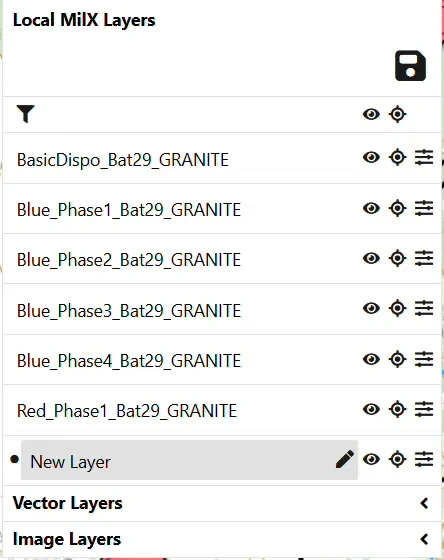
- Click a layer name to select it, and read the icon you get back: a pencil means the layer is active and editable (its tooltip is Active (editing) layer), while a checkmark means the layer is selected but read-only (Selected layer is Read-Only). Only the selected layer carries an icon at all — the other rows show none.
- A layer you have just created becomes active immediately, so the next symbol you draw lands there. A layer created from a template may start without the pencil; click it once before placing symbols.
- Switching the map to 3D view and back deactivates the working layer. Re-activate it after returning to 2D.
How saved files are named
When you save your work, map.army writes it to a local file on your own device with the .milxlyz extension — the compressed MilX variant. Loading reads a local file back the same way; nothing is stored server-side unless you deliberately create a MilX Share. The name is generated for you and carries a date-time group, so repeated saves never overwrite each other:
- One layer — the layer’s own name plus the timestamp, e.g.
New Layer_16095317ZApr26.milxlyz. - Several layers at once — bundled into a single file, e.g.
LayerCollection_17114814ZAug26.milxlyz.
The timestamp reads as day, hours, minutes, seconds Zulu, then month and year — 17114814ZAug26 is the 17th of August 2026 at 11:48:14 Z. You can replace the suggested name with your own before confirming the save.
Because the layer’s own name becomes part of the filename, naming layers well pays off twice: once in the layer list, and again in your file system months later.
Layers in an open session
While map.army is open your layers live in the page, and closing or reloading the page loses them — there is no autosave. Treat an open session exactly like an unsaved document.
What the application can remember is where your work came from, not the work itself: the last share link, a web address, or a folder you granted it access to. It then offers to fetch the content again. The full picture — which of the three applies to you, and what each one does not cover — is on Session persistence.
.milxlyz file is your only durable copy — it can be re-loaded later, moved to another machine, or sent to another map.army user. Save early and often; see Layer-Manager for how.Where to go next
- The Layers panel and Layer-Manager — the panel, its buttons, and creating, saving, loading or deleting layers.
- Work with symbols on MilX layers — move symbols between layers, find them with the filter, mark a layer Approved.
- Import Overlays — bringing in MilX, vector and image layers.
- Export Overlays — saving out, including older MilX versions and other coordinate systems.
- Export KML / KMZ for Google Earth — and why that copy cannot come back.
When you need a copy that lives server-side instead of on your device — for sharing, or as an extra backup — create a MilX Share instead of (or in addition to) saving locally; see How to create a share.