On this page
Import Image Layers and Place Them on the Map
This page shows how to add an image layer to map.army, place it on the map and keep its placement.
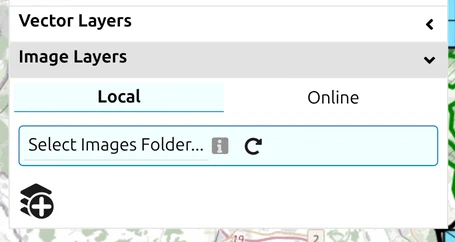
An image layer lays a picture — a scanned or photographed map, an aerial photograph, a sketch — over the base map. map.army accepts these formats:
| Ending | Format |
|---|---|
| *.png | Portable Network Graphics — raster graphics format with lossless data compression |
| *.jpg, *.jpeg | JPEG — the most common photo format |
| *.bmp | Windows Bitmap |
| *.webp | WebP — compressed image format developed by Google |
| *.svg | Scalable Vector Graphics — drawn as a picture, not as editable vector shapes |
How to add an image layer
- Open Layers, expand Image Layers and click the Add Layer icon.
- Choose where the image comes from:
- Local — Select File… picks one image from your device. In Chrome and Edge on the desktop you can instead pick a whole folder with Select Images Folder…; see Save the placement for next time for what that adds.
- Online — enter the image’s URL: and a Name:, then click Load. The server that hosts the image must allow other sites to load it; map-tile servers usually do.
- Under Geo Reference, place the image on the map — see Place the image below.
- Click the green Add Layer button. Until you do, the image is only staged in the dialog and not part of your map — this final step is the one most often missed, and the cause of “my image layer is not showing” reports. A staged layer stays staged if you collapse the panel; it is gone once you add it or cancel.
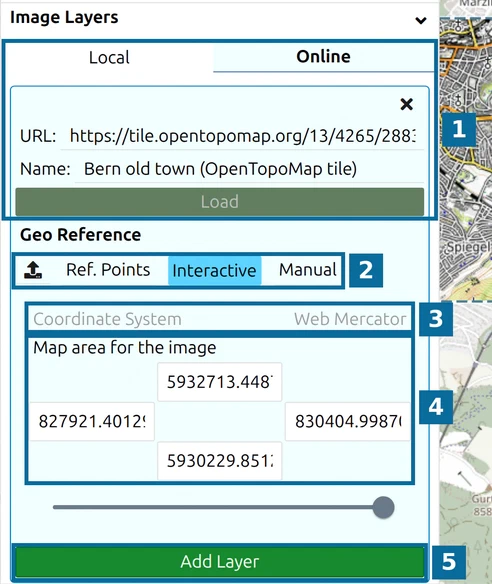
- Where the image comes from — Local or Online, here an online map tile with its URL:, Name: and Load.
- The placement modes: the upload icon (from a file), Ref. Points, Interactive and Manual.
- Coordinate System of the coordinates shown below it.
- Map area for the image — the coordinates of the image’s top, left, right and bottom edges.
- Add Layer adds the image to your map.
The slider above Add Layer sets how opaque the image is.
Place the image
As soon as the image has loaded, Interactive is selected and the picture is laid over the middle of the map, inside a dashed frame with coloured handles:
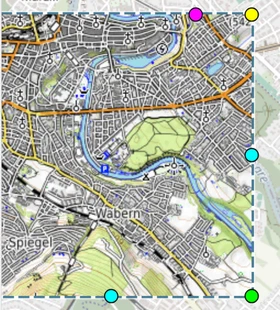
| Drag… | to… |
|---|---|
| inside the picture | move it |
| the green handle (bottom-right corner) | resize it, keeping its proportions |
| a cyan handle (middle of the right or bottom edge) | stretch only the width or only the height |
| the yellow handle (top-right corner) | rotate it |
| the magenta handle (on the top edge) | make it more or less transparent while you place it |
Map area for the image follows along and shows where the picture sits, in the map’s own coordinate system (Web Mercator, in metres).
The other placement modes:
- From a file — the upload icon left of Ref. Points. The quickest route when the image came with a world file (
.pgw,.jgw,.j2w,.tfw,.wld— see Export as Georeferenced Image) or with a placement file you saved earlier from map.army (.json, see below). Load the image first, then click the upload icon and pick the file — a placement file picked before the image has loaded is ignored. A world file says nothing about its coordinate system, so choose the right one under Coordinate System before you click Add Layer. - Ref. Points — fix the picture by three points you can recognise on both the image and the map. See the next section.
- Manual — type the edges of the image yourself. Add Layer stays disabled until all four edge values are filled in.
Place an image with reference points
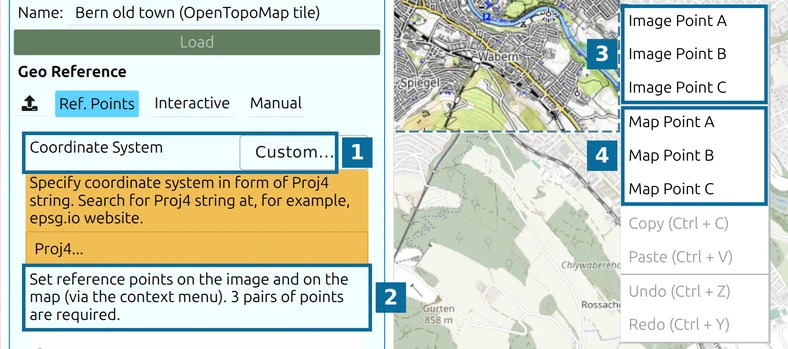
When you have no world file — a scanned map, a photographed overlay — you can georeference the image yourself: tell map.army which point on the picture lies on which point of the ground, so that it lines up with the map underneath.
- Load the image and click Ref. Points. Coordinate System switches to Custom…; choose UTM and type the zone (for example
32N; the hint reads Specify UTM zone (Example: 32N)), or paste a Proj4 definition under Custom…, before you add the layer. A wholeproj4.defs("name","definition");line is accepted too. - Right-click a feature you can recognise on the image — a road junction, a bridge, a building corner — and choose Image Point A.
- Right-click the same feature on the map and choose Map Point A.
- Repeat for B and C. As soon as all three pairs are set, the picture is placed. Each point is shown as a labelled cross that you can drag to correct it.
- Click Add Layer.
Save the placement for next time
After Add Layer, the image’s row under Image Layers carries a download icon, Save placement of image overlay (download as file for reuse). It saves a small placement file named after the image — Bern.png gets Bern.png.json. Next time, load the image, click the upload icon and pick that file, and the picture lands exactly where it was.
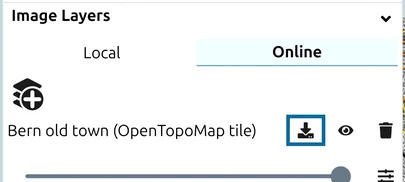
If you work from a folder (Select Images Folder…), map.army reads and writes these .json files next to the images by itself, and the download icon is not needed.
Adjust the layer after adding it. Besides the download icon, the image’s row has these controls:
- Opacity — the slider under the layer name, from 0 to 100 per cent.
- Show / Hide — the eye icon; it takes the image off the map without removing it.
- Remove the layer — the bin icon.
- Settings — the sliders icon beside the opacity slider (shown only when the image supports colour changes). It opens a panel with a read-only Layer Source field showing the web address or file name the image came from, and three sliders: Brightness (-100 to 100, default 0), Hue (0 to 360 degrees, default 0) and Chroma (0 to 100, default 100, where lower values wash the colours out). Use them to tone down a bright scan or shift its colours so symbols stand out.
Image layers and the .milxlyz format
Image-layer placement coordinates are written to a settings file named after the layer file and placed next to it — Bern.png gets Bern.png.json, one per layer. Vector layers get the same treatment. To preserve an image layer across sessions, keep the layer file and its settings file together — when you re-open the picker and select the same directory, map.army restores the original placement automatically. An image without a settings file still loads — you then place it again.
Image layers are not embedded inside .milxlyz exports. When you share or save your work as MilX®, the image-layer content is left behind. To share a map that includes an image layer, either share the image file separately, or use an online-source image layer — see Share Online-Source Layers.
Image layers for custom graphics and fictional maps
Image layers are the supported workaround for any use case that needs non-standard graphics on the map:
- Scanned campaign maps or historical maps as a background.
- Fictional-nation maps for wargaming or roleplaying scenarios.
- Custom emblems, unit crests, or other artwork on top of the MIL-STD-2525 symbols.
These graphics ride on a separate image layer; they are not embedded into individual military symbols (the MIL-STD-2525 / JC3IEDM exchange format cannot carry arbitrary images on symbols). For amplifying icons that do attach to a symbol, use an Icon Extension Modifier — see Symbols → Symbol Editor.
Removing a layer you loaded from a folder
Bern.png.json) — not just the layer from the map. This applies wherever you picked a working directory: Chrome or Edge on the desktop, installed as a PWA or in an ordinary browser tab. The deletion goes straight to the file system, not the recycle bin, and it applies to vector files exactly as it does to images. Keep a copy of the source file elsewhere before adding it as a layer.A second quirk affects load order: if you open a .milxlyz first and then add an image layer in the same session, the image layer may not be picked up automatically on the next session reload. The reliable workflow is to add the image layer first, position it, then load any MilX layers on top. If you hit a state where the image layer does not return on reload, re-add it manually from the saved image and its settings file.
Image layer vs. base-map switching
Importing an image layer is supported in the public web app and is the right tool for adding a custom backdrop to a map.
Switching the base map itself to a private WMTS / WMS provider (so the underlying map tiles change) is a different mechanism. One such service can be passed in the link — see Connect Your Own Map Service. Having the app’s whole map list come from your own providers, selectable in the Options panel, is configured per deployment; see the FAQ entry on the professional version.
Last updated: