On this page
Print a Tactical Map to Scale from a PDF
Printing a situation map is a two-step job in map.army: export a PDF at the scale you need, then print that PDF without letting anything rescale it. The second step is where printed scale usually goes wrong.
Hint: **Print map or Export to PDF** button opens one panel that exports **PDF** or an **image**; printing means printing the PDF it produces.
There is no separate Print mode in the app. The
**Print map or Export to PDF** button opens one panel that exports **PDF** or an **image**; printing means printing the PDF it produces.Export the PDF at the scale you want
- Open Print map or Export to PDF from the left edge of the main window.
- Under Export Area, set the area and the Scale — this is the number that decides whether your grid squares come out right.
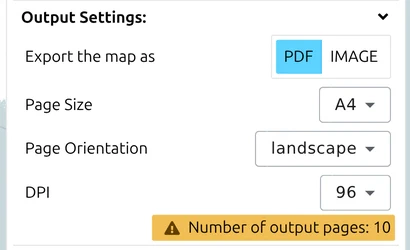
- Under Output Settings, choose PDF, then set Page Size and Page Orientation. Landscape suits most areas of operations.
- Check the Number of output pages readout. More pages than you expected means the area is too large for the scale and paper you picked.
- Set the DPI higher than the on-screen default — print shows up detail that a screen hides.
- Click Export.
Full detail on every control is in Export a military map to PDF or a georeferenced image.
Print the PDF at 100 %
Hint: Turn off every “fit to page” option before printing. A dialog that shrinks the document to fit the paper silently changes the map scale, and a 1 : 25 000 map printed at 96 % is no longer 1 : 25 000. This is the single most common cause of grid squares that do not measure correctly.
In the print dialog:
- Set Scale (sometimes Page Scaling) to None or 100 % — never Fit to printable area or Shrink to fit.
- Turn off any driver-level Fit to page, Borderless or Auto margin shrinking.
- Set margins to None and enable Background graphics, so the map reaches the paper edge and the base map actually prints.
Check the result on the paper
Do not trust the dialog — measure the printout:
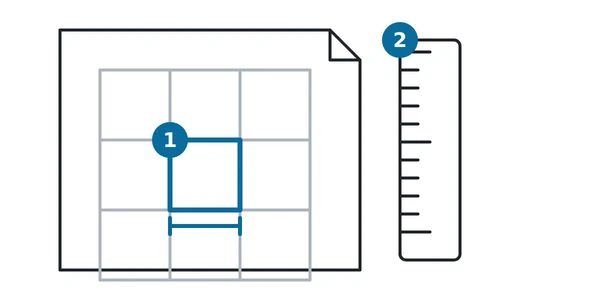
- Find a grid square of known ground distance, for example 1 000 m at 1 : 25 000.
- Measure it with a scale ruler or a Pickett roamer, or compare it against the map’s own scale bar.
- At 1 : 25 000, a 1 000 m grid square must measure exactly 40 mm on the page.
If it does not, something rescaled the document — go back and check the print dialog before changing anything in map.army.
Hint: If the printed grid still does not match after you have ruled out scaling, send us the PDF and a short screen recording through the contact form so we can look into it.
Last updated: