On this page
Share a Tactical Map or COP Online with a Link
You can share your edited maps with somebody, and give your whole team one common operational picture (COP). This article shows you how.
Tutorial video about the map sharing
Creating a share
Follow these steps to share your map with somebody:
Click on the ‘Layers’ button.

After that one window will appear. You have to click on the ‘Share Military Map icon’.

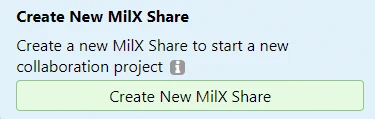
After click to the ‘Create New MilX Share…’ button.

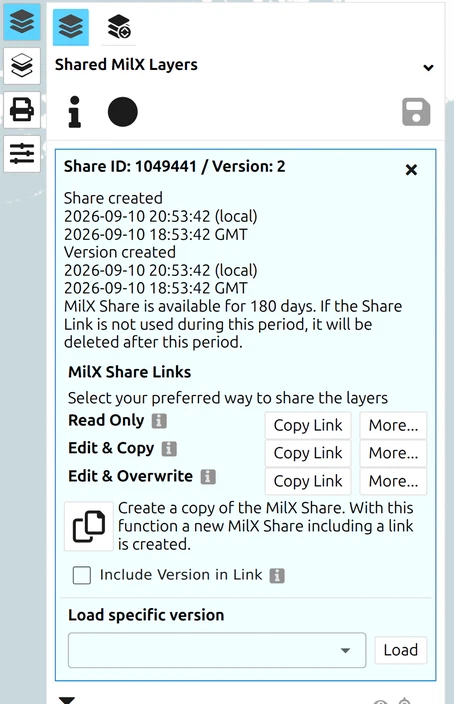
You have to choose which sharing types would you like to use. There are ‘Read Only’, ‘Edit & Copy’ and ‘Edit & Overwrite’ options.
Click on the ‘Copy Link’ or on the ‘More…’ button for share on one social media platform.
The first icon is an iframe icon. This function provides the full HTML code to implement the project directly into a web page or blog.

Add layers to your share
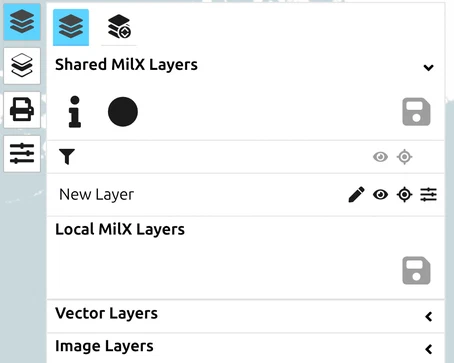
After creating an empty share, populate it with your work:
- Open the Layer-Manager (the same Layers menu).
- Drag the layers you want to publish into the Share MilX Layer section. A share carries your MilX layers in full. It also reproduces online-source image and vector layers, because it stores the address they were loaded from — but local image and vector layers, loaded from a file on your own machine, do not travel with a share at all. See Share online-source layers.
- Click the green ‘Update Current MilX Share’ button (shown in the Versions of shares section below) to save the layer composition into the share. Until you save, the share remains empty for anyone who opens the link.
Recipients who already have your share link will see the new layers the next time they reload the page (or, with Track Changes enabled, within about three minutes — the app checks the share for a newer version roughly every 200 seconds).
Versions of shares
The shares have versions.
It is possible to update the versions after the map editing. Just click to the green ‘Update Current MilX Share’ button.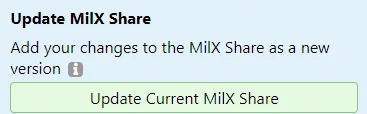
After the version update the version number will change:
Types of share
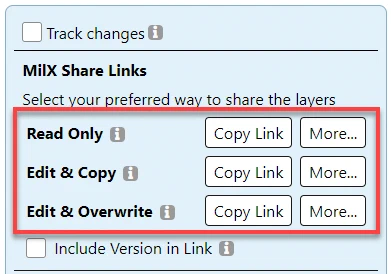
A share carries one of three access levels, and the level is fixed by the link you hand out — the recipient cannot raise it. These are the app’s own descriptions:
| Type | What the recipient can do |
|---|---|
| Read Only | Load the shared layers from the URL. They cannot be edited, and cannot be saved locally. |
| Edit & Copy | Load, edit and save locally — but changes can only be saved as a new MilX Share. No collaboration on the original. |
| Edit & Overwrite | Load with full write rights, and save changes as a new version of the same share. This is the level that lets several people work one situation together. |
Pick Edit & Overwrite only when you actually want collaborators writing into your share; Edit & Copy lets someone build on your work without being able to alter it.
Known limitations
A few constraints to keep in mind when planning share usage:
- A share expires after 180 days of disuse. The application states it plainly: a MilX Share is available for 180 days, and if the link is not used in that period it is deleted. A share is therefore not an archive — keep the
.milxlyzif the situation has to outlive the exercise. - No password protection. Share links are obscure but not authenticated — anyone with the link can open it, with the permissions of the share type chosen above. There is no password / private-link option today; sensitive maps should not be put behind a public share. If you need access control, consider a closed-network deployment (see the FAQ entry on closed networks).
- No user accounts. The free hosted version has no user accounts or persistent personal storage. A share is the only way to “save” a map server-side; otherwise rely on local MilX export (see Layers → Export Overlays).
- Reload resets the view. Opening a share link re-centres and re-zooms to the share’s stored default view; any pan/zoom the recipient performed before a reload is not preserved.
- What a share stores, and where. Creating a share uploads two things to gs-soft’s servers: your MilX layers, and the project settings that go with them (including the addresses of any online-source layers). They stay there until the link has gone unused for 180 days — the app has no delete button — and anyone holding the link can read them. Details: Data protection. Treat a share as publication, not as storage — do not put material through it that you would not publish.
Create new Version from the share
It is possible to create new versions from the share. This new version will use total another ID.
Click the ‘Layers’ button.
After that one window will appear. You have to click on the ‘Share Military Map icon’.
Click to the green ‘Create New MilX Share…’ button.
How to load a specific share
It is possible to load a specific version of the share. Follow these steps if you would like to change the versions.
Click the ‘Layers’ button.
After that one window will appear. You have to click on the ‘Share Military Map icon’.
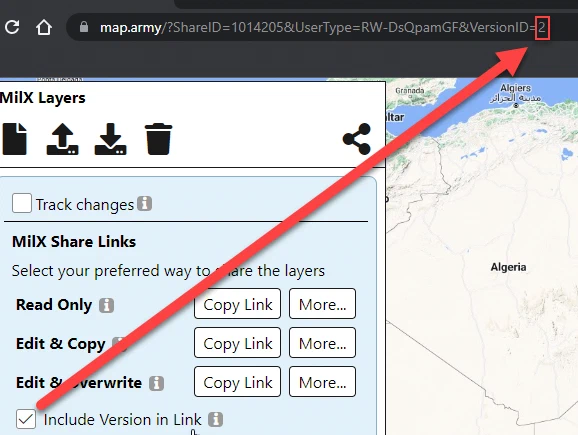
After click into the white square next to ‘Include Version in Link’.

To go back to an earlier version, change the number in the URL.
Track changes
The track changes function makes it available to the user that to get a notification from the website when the share is changed. It is good for collaboration.
Follow these steps if you would track the share:
Click the ‘Layers’ button.
After that one window will appear. You have to click on the ‘Share Military Map icon’.
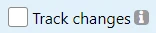
After click into the white square next to ‘Track changes’. For the tracking it must be selected.
If the share are edited a notification appears. map.army checks for changes every few minutes rather than instantly, so expect a short delay rather than an immediate alert.
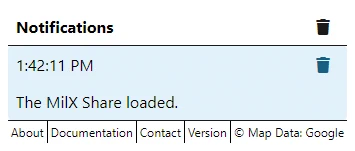
To see the changes refresh the page.
Last updated: