On this page
AI with map.army: Generate and Analyse MilX® Files
map.army has no built-in AI. It does not need one: its layers are saved as MilX®, an open XML format, and AI assistants such as Claude can read and write XML. This page shows how to use an AI to create layers, check them and automate routine work, and what to watch out for.
Why AI can work with MilX®
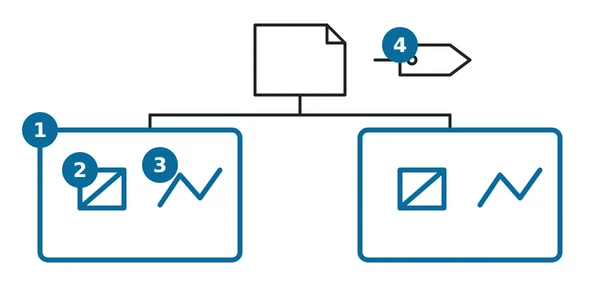
A MilX file is plain text. It lists layers, and in each layer the symbols and tactical graphics with their coordinates — see MilX File Format. A symbol is written as a symbol identification code (SIDC), the 15-character code MIL-STD-2525 gives every symbol.
That makes MilX something an AI can handle in two ways:
- In a chat — you paste text in, the AI answers with a MilX file or a summary.
- In a tool — scripts and agents built on an AI (for example Claude Code, or an agent that runs a workflow on its own) read and write MilX files directly.
The AI never talks to map.army. It produces or reads a file; you load the file into map.army and check it there.
Generate a MilX® layer with AI
Base map © swisstopo.
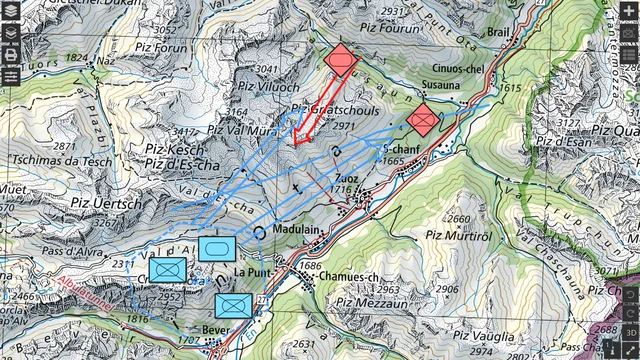
Give the AI what you have — a written order, a unit list, a table from a spreadsheet — and ask for a MilX layer. The example above was produced that way: three blue companies in an assembly area, a company boundary, a main and a supporting attack, two red companies and a red counter-attack. The exercise is fictional. You can download it as fictional-exercise.milxlyz and give it to your AI as a pattern. A .milxlyz is a ZIP archive holding the XML as Layer.milxly: unzip it to give the AI the XML, and zip the AI’s XML as Layer.milxly to get a .milxlyz again.
Then load the result into map.army in one of these ways:
| Way | When to use it |
|---|---|
| Load MilX in the Layer-Manager — see Import Overlays | A .milxlyz file on your own computer. An uncompressed .milxly loads too. |
A layer link ?layer=<url> — see Load a MilX Layer via URL Parameter | The file is on a web server, for example produced by a script. |
| A MilX working folder | Pro and closed-network deployments only; switched off in the free hosted app — see Pro vs. Free. |
Analyse layers with AI

Save your layers with Save as MilX — see Export Overlays. map.army always saves a zipped .milxlyz; unzip it to get the XML, or let your tool do it. Then ask the AI, for example:
- Summarise the units by affiliation (friend, hostile, neutral) and by echelon (company, battalion …).
- List positions, or which units lie inside a given area.
- Find gaps — symbols without a designation, missing text modifiers, unexpected symbol codes.
- Check consistency before an exercise — does every unit in the order appear on the map, and nothing else?
For other systems, map.army itself exports KML / KMZ and NVG; use those exports rather than an AI conversion when the target system reads them.
Automate with agents and scripts
An AI that can run tools can take over repetitive work around map.army. Typical workflows:
- Batch-create layers from unit lists — one MilX layer per unit or per phase, written to a folder or a web server.
- Nightly checks of shared overlays — download a layer, run the consistency checks above and report what changed.
- Report generation — turn a layer into a written situation summary or a unit table for an exercise document.
Keep a person in the loop: the agent produces files and reports, a person reviews them in map.army before they are used.
Pitfalls when generating MilX®
These are the mistakes that most often break an AI-generated layer. Tell your AI about them up front.
Symbol codes
Each symbol is a 15-character MIL-STD-2525C SIDC inside <MssStringXML>, XML-escaped. Text modifiers are <Attribute> elements, identified by their modifier letter (T, M, H, G …):
<MssStringXML><Symbol ID="SFGPUCIZ---E---"><Attribute ID="T">1</Attribute></Symbol></MssStringXML>
Let the AI use only codes it can verify, for example against the list of MIL-STD-2525C symbols on the symbol.army documentation, and check how each one renders.
Attribute values are validated
The MSS® (Military Symbol Service) checks attribute values, and an invalid value is rejected: the symbol does not render. Example: the direction of movement Q takes three digits — 060, not 60.
Coordinates
Use <CoordSystemType>WGS84</CoordSystemType>. In each point, <X> is the longitude and <Y> the latitude — the reverse of how coordinates are often spoken.
Point order in tactical graphics
For multi-point graphics, the order of the points carries meaning:
| Graphic | SIDC | Points |
|---|---|---|
| Main attack | GFGPOLAGM------ | 3 points: P1 arrow tip, P2 start of the shaft, P3 a point slightly behind the tip and offset sideways, which sets the width of the arrowhead |
| Supporting attack | GFGPOLAGS------ | as main attack |
| Boundary | GFGPGLB----E--- | a polyline, any number of points |
| Assembly area | GFGAGAG-------- | a polygon; T carries the name |
Swap P1 and P2 and the arrowhead is drawn at the start.
Security and data protection
What map.army itself does with your data is covered by the map.army privacy policy and described in Data Protection. It does not cover the AI service you choose.
Integration with MSS® and MilX® Web Services
To integrate symbol rendering or MilX processing into your own system, gs-soft offers the MSS and MilX Web Services. Contact mss@gs-soft.com.
Last updated: