On this page
The map.army Project Model — Projects, Layers, Symbols
Most pages on this site describe one piece of the workflow — placing a symbol, exporting a layer, creating a share. This page steps back and shows how those pieces fit together. Knowing the model up front makes the rest of the docs read more cleanly.
Three concepts, top to bottom
map.army organises a tactical situation into three nested concepts:
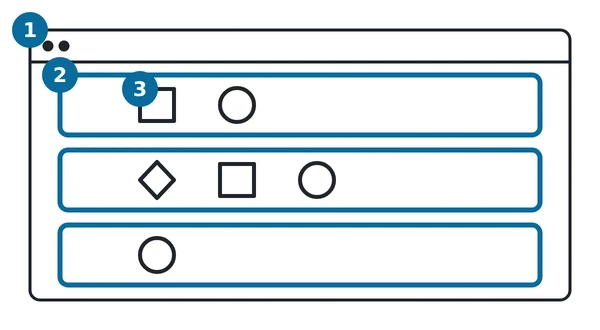
| Concept | What it is | Where it lives |
|---|---|---|
| Project (1) | The working session — your current map view, the set of open layers, and the application settings around them. | In the browser, while the tab is open. The hosted app stores no per-user state on the server. |
| Layer (2) | A named container for symbols and tactical graphics. A project usually has several layers (blue forces, red forces, phase lines, …). | Saved as a MilX file (.milxlyz or .milxly) when you export. |
| Symbol / Tactical graphic (3) | A single MIL-STD-2525 placement on a layer: a unit symbol, a phase line, a range ring, etc., with its position, affiliation, status, and modifiers. | Inside the layer it belongs to. |
The hierarchy is strict: every symbol belongs to exactly one layer; every layer belongs to the current project. Moving a symbol between layers is supported (see Symbols on Layers — Move symbols between layers); a symbol that belongs to no layer is not a state the application can represent.
The project is the open browser tab
There is no “New Project” or “Open Project” menu. The project is implicit — it is whatever you have on screen right now: the map view, the active base map, the coordinate grid setting, the open layers, and the symbols on them. Close the tab without exporting and the project is gone.
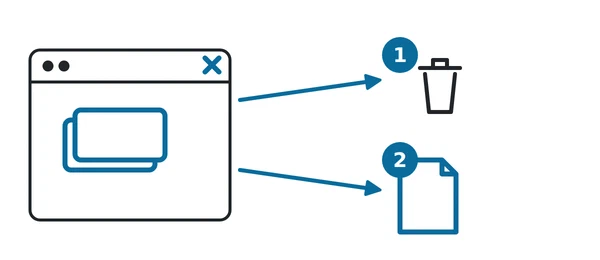
In the diagram: 1 closing the tab without exporting loses the project; 2 exporting to a .milxlyz file keeps it.
Two practical consequences:
- Save by exporting. The supported “save your work” action is Export Overlays →
.milxlyz. Treat this like a Save As… command in a desktop application. See Export Overlays. - Settings persist; your work does not. Browser-stored preferences (language, unit settings, default symbol format) survive a reload. Layer content is never written to browser storage at all, so there is no “cache state” to hope for — what the application may remember instead is a pointer back to where the work came from. See Session persistence below.
Layers are MilX
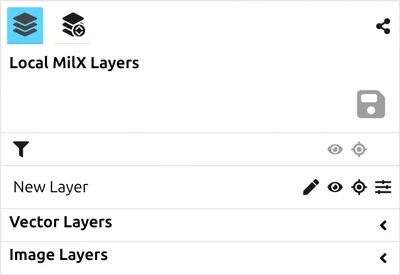
A layer in map.army is a MilX layer. The application internally and externally treats them identically — the file you export (.milxlyz) is the same content the application is editing. This is why most layer-related pages talk about “MilX layers” interchangeably with “overlays”.
Two non-MilX layer types are also supported but behave differently:
| Layer type | Carries MilX symbology? | Saved into .milxlyz? |
|---|---|---|
| MilX layer | Yes | Yes |
| Image layer | No — it is an image file pinned to coordinates | No — map.army writes a settings file named after the layer file beside it (Bern.png → Bern.png.json), see Import Overlays |
| Vector layer | No — it is KML / GPX / GeoJSON / SHP geometry | No — same settings file as an image layer; otherwise add it again after a reload, unless it came from a web address |
When the docs say “save a layer” without qualification, they mean a MilX layer.
Sharing externalises a project
A MilX Share is the server-side equivalent of an exported .milxlyz: gs-soft’s backend keeps the MilX content under a public URL so other users can open it (read-only or edit, depending on the share type). Image layers and vector layers do not travel with a share — only MilX symbology does.
A share is a way to publish your project externally; it is not “the project itself”. You can:
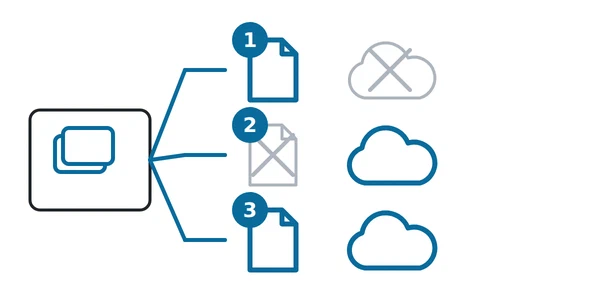
- Export a
.milxlyzand never create a share — your work stays local. (1) - Create a share and never export — your work lives on gs-soft’s servers under the share URL. (2)
- Do both — the share is a published copy; the local file is your archive. (3)
See How to create a share for the three share modes (Read Only, Edit & Copy, Edit & Overwrite).
Session persistence — what survives a reload
map.army keeps three different kinds of thing, and they behave differently. Knowing which is which is the whole of it.
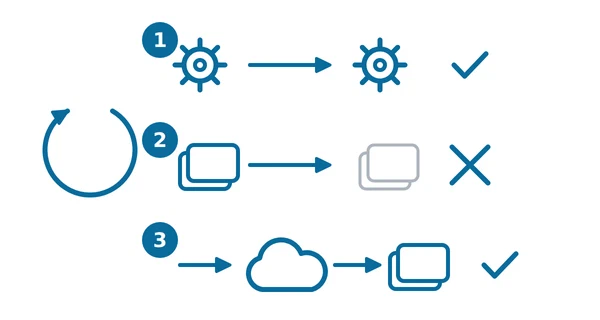
Your settings are kept. (1) Language, units, symbol format, the map view, your gallery favourites — all in browser storage, all back after a reload.
Your work is not. (2) The symbols and layers you draw are never written to browser storage. There is no autosave and no local draft: close or reload the tab and the content is gone unless you saved a .milxlyz or put it in a share. This is the rule to plan around.
What sits between the two is a pointer. (3) map.army does not keep your work, but it can keep where your work was, and then offer to fetch it again:
- The last share you opened. Its link is remembered, and at the next start map.army asks “Load last used MilX Share?”. The layers come back from the share server, not from your browser. If you tick Don’t show this message again on that prompt, it stops asking and loads the last share automatically on every start — the application tells you so, and offers to stop, in a notification.
- A folder you granted access to. If you added image or vector layers by picking a working directory — offered only where your browser provides the file-system directory picker, which today means Chrome and Edge on the desktop — map.army remembers that folder and asks “Do you want to reload the last used Image Layers?” (and the same for vector layers) at the next start. Answer yes and the layers come back with their placement, opacity, colour and visibility. Answer no and it forgets the folder.
Neither pointer holds a single symbol. A share is re-fetched from the server; a folder is re-read from your disk, with your permission.
| Thing | Survives a reload? |
|---|---|
| Application settings (language, units, symbol format) | Yes — kept in browser storage. |
| MilX layers you drew | No. Layer content is never stored in the browser. Load your saved .milxlyz again. |
| MilX layers you opened from a share link | The link is remembered: map.army offers to reload the share, and does so without asking once you tick Don’t show this message again. The layers come from the share server. |
| Image or vector layer from a single file | No — add the file again. |
| Image or vector layer from a granted folder (where the directory picker exists) | The application offers to reload them, with placement and styling. |
| Image or vector layer from a web address | Yes — the address is remembered and the content re-fetched. Not while you are working inside a share, where this is suspended. |
| The active layer’s “pencil” indicator | No. |
.milxlyz file you load again, or a share link, which re-fetches it from the share server.The same picture from the layer side is in MilX Layers. The rule follows from the table: export your MilX layers before you close the tab, because closing it discards them.
What this model is not
A few things map.army deliberately does not do, because the hosted version has no per-user state:
- No project list for local files — there is no list of
.milxlyzfiles you have opened, and no way to reopen one from inside the application. (A share is different: the last one is remembered and offered back — see above.) - No autosave to a server. Browser caching is best-effort.
- No multi-project workspace. You work on one set of layers at a time. To switch projects, export your current work, then import the other
.milxlyz.
The professional offering (Free vs Pro) lifts some of these constraints — user accounts, server-side projects, role-based access — but those are project-scoped deployments, not part of the free hosted demo.
Last updated: