On this page
map.army Performance — Speed & Latency Guide
map.army is a browser-based application talking to backend services hosted in Europe. This page explains what affects its responsiveness and how to mitigate slowdowns.
Geographic latency
The application’s backend (MSS / MilX web services and the share-storage tier) runs from European data centres. Every UI action that hits the backend — opening a Symbol Gallery node, placing a symbol that needs server-side rendering, saving a share, loading a share — incurs a round-trip whose lower bound is the speed of light to Europe and back.
Approximate best-case round-trip floor by region:
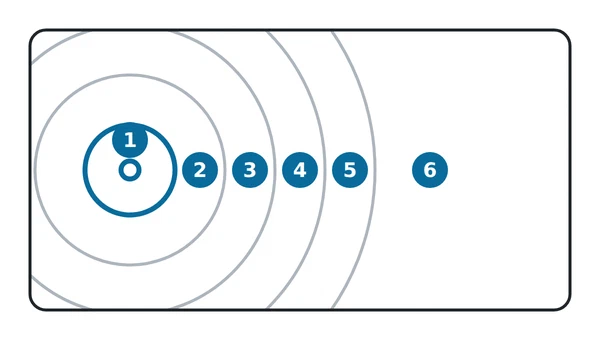
| User region | Best-case round trip |
|---|---|
| Central / Western Europe (1) | < 50 ms — feels instant |
| Eastern Europe / UK (2) | 50 – 100 ms — still snappy |
| US East Coast (3) | ~120 ms — noticeable pause on rapid actions |
| US West Coast (4) | ~180 ms — visible delay on every server-bound action |
| Brazil / Africa (5) | ~250 ms — significant lag |
| East Asia / Oceania (6) | 300 ms+ — every server-bound action shows lag |
The numbers above are physical lower bounds; actual latency on consumer ISPs is typically 1.5 – 3× higher.
Browser and device
- Chrome, Edge, Firefox, and Brave offer the best performance — their JavaScript engines and WebGL implementations are well-tuned for the heavy rendering map.army performs.
- Safari works but tends to be 10 – 20 % slower on the Symbol Gallery; iPadOS Safari is fine for occasional use.
- Mobile devices carry the JS-engine overhead of their constrained CPUs; complex layer collections (hundreds of symbols, multiple image layers) may feel slow even on flagship phones.
- Discrete GPU is helpful for 3D view; integrated graphics work but limit terrain detail.
Layer-size mitigations
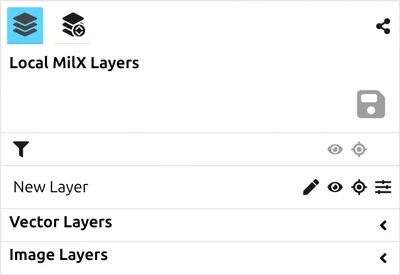
If editing feels slow:
- Hide layers you aren’t editing right now. The visibility toggle in the Layer-Manager reduces redraw work.
- Split large operations into multiple
.milxlyzfiles — one per phase / per unit / per sector. Open only the file you currently need. See Layers → Export Overlays — Working with very large MilX layer collections. - Close the Symbol Gallery when you’re not actively placing symbols — it consumes its own redraw budget.
- Drop image layers that you’ve already used for tracing — they remain costly to render even when MilX layers sit on top.
The limits you can actually hit
map.army enforces four size limits. Three of them are set by the service rather than built into the application, so the exact numbers depend on the deployment you are using — but the shape of the warning is the same everywhere and is worth knowing before an exercise rather than during one.
| Limit | Applies to |
|---|---|
| Layers per project | How many layers one project may hold |
| Graphics per layer | How many symbols one layer may hold |
| Points per graphic | How many vertices one multi-point graphic may have |
| ~6000 symbols project-wide | A fixed guard, independent of the three above |
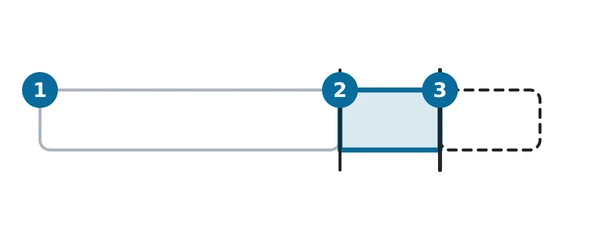
In the diagram: 1 below 75 % of a limit nothing appears; 2 from 75 % an indicator shows the count; 3 past 100 % it becomes an alert.
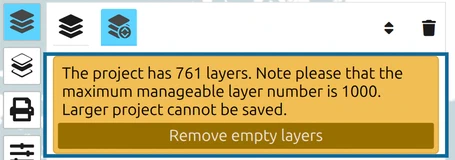
The 6000-symbol guard behaves differently and catches people out: when the project passes it, map.army warns and then sets every layer added since the last check to invisible. Nothing is lost, but a large import can appear not to have arrived. See Import Overlays.
The practical answer to all four is the same one as above: split a large operation into several .milxlyz files and open only what you need.
Hosted-service availability
For service availability, planned-maintenance notice policy, and recommendations for users who depend on uninterrupted access, see the FAQ entry on monitoring and maintenance windows.
Last updated: